Sonnical User Guide
Everything you need to set up your business, plan the shifts and let your team organise itself. Updated for version 1.04 (September 2026).
Introduction
Sonnical is a shift planner for any business that runs on shifts: hospitality, retail, clinics, services. You use it from your phone (iOS and Android) and from the web. The mobile app is the everyday tool for the whole team; the web adds the management dashboard, the full-screen schedule and analytics.
Mobile first
Calendar, clock-in, time off, swaps and every management task from the phone.
Automatic shifts
Generate and assign whole weeks or months with three strategies: optimal, rotational and basic.
Web as support
Dashboard with uncovered shifts, weekly schedule, staff requests and exportable analytics.
Self-managed team
Employees swap and give away shifts among themselves; you only approve.
Who is who
| Role | What they can do |
|---|---|
| Admin | The account owner. Sets up the business, manages the team, generates and assigns shifts, approves requests for any position and manages the subscription. |
| Sub admin | A manager. Creates employees, generates shifts and approves swaps and time off for their own position. |
| User | Employee. Sees their calendar, clocks in, requests time off, swaps or gives away shifts and shares availability. |
| Freelancer | Hourly or per-module staff. Only receives shifts on the days they have marked as available. |
Each section explains what a feature is for, how to do it step by step and what to keep in mind. Screenshots are from the iOS app unless the web is stated; Android has the same screens.
Creating your account
The first account created is the administrator's. Employees do not sign up on their own: they join through the invitation link the administrator sends them (see Team).
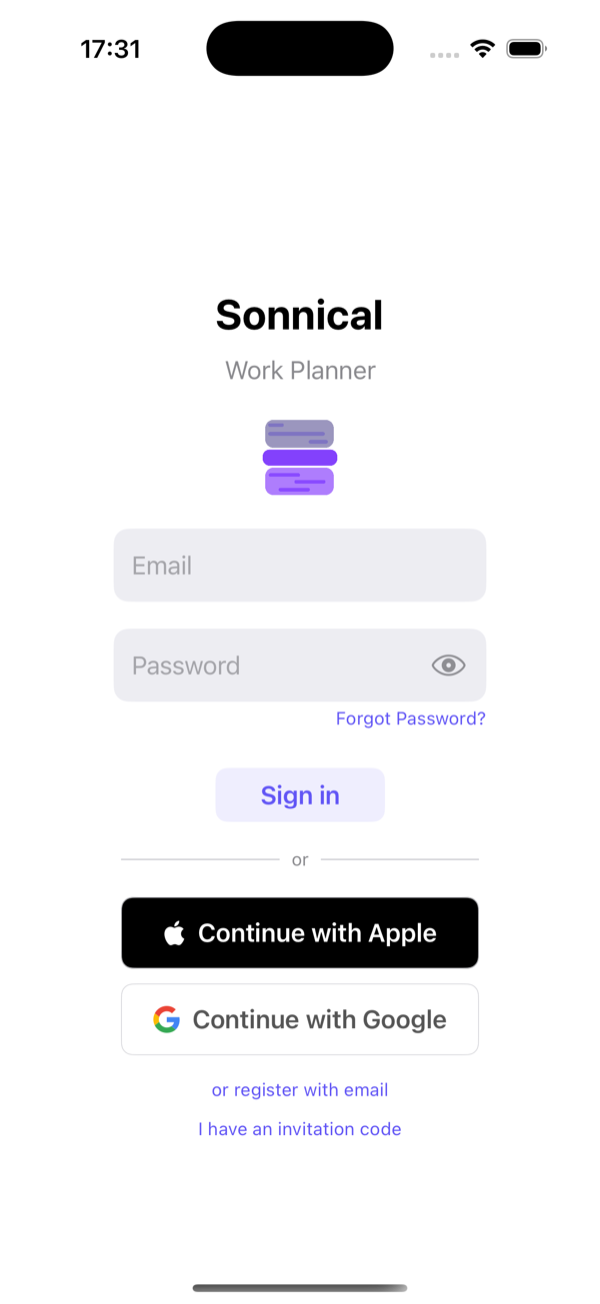
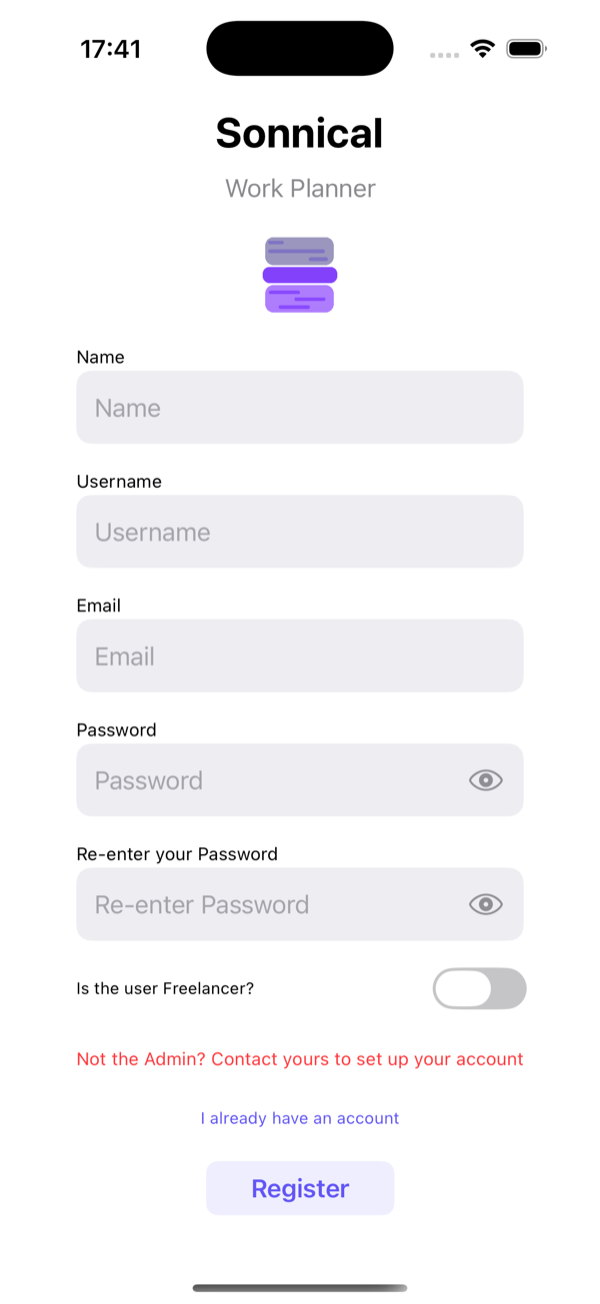
- Download Sonnical from the App Store or Google Play, or open the web app at sonnical.com.
- Choose Continue with Apple, Continue with Google or or sign up with email.
- With email: enter your name, a username, your email and a password of at least 8 characters with an uppercase letter, a lowercase letter and a number.
- Tap Register. You go straight into the setup wizard.
With email and password you receive a verification email. You can keep setting up the business meanwhile; a few features (such as inviting employees by email) stay locked until you confirm.
Do not create a new account. Ask your manager for the invitation link or use I have an invitation code on the sign-in screen. You will sign in with Google or Apple, no password needed, and your shifts will already be there.
Set up your business in 5 minutes
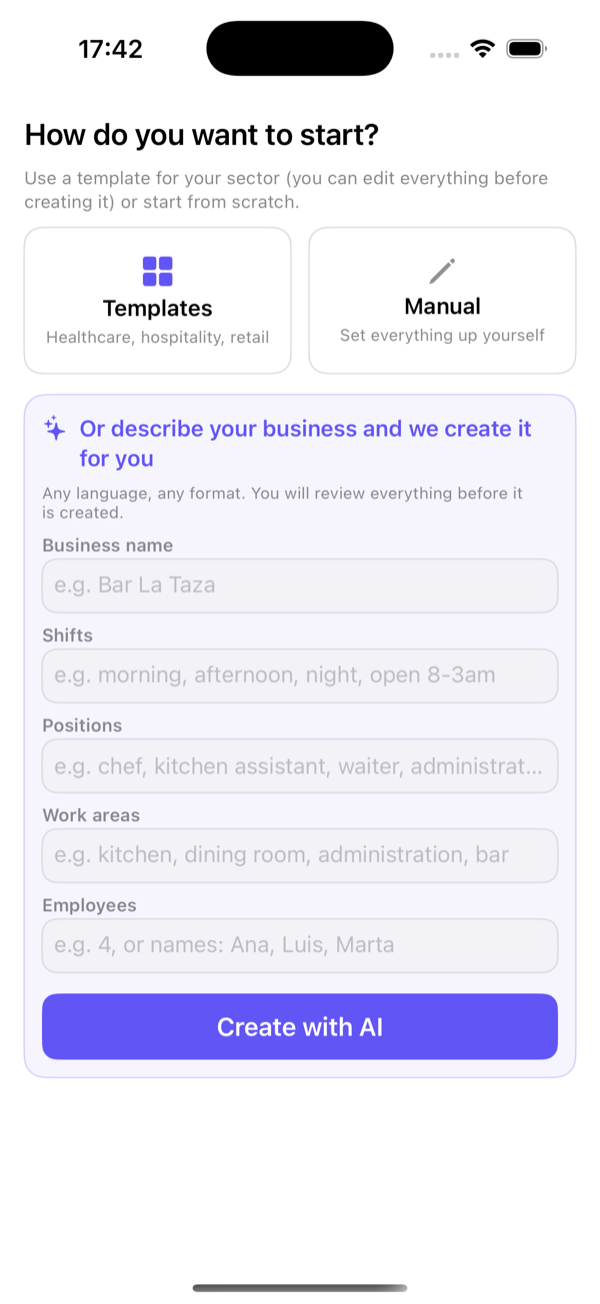
Right after signing up, Sonnical asks how you want to start. There are three paths and all of them end on a review screen where you can change anything before creating it.
Option A: a template for your sector
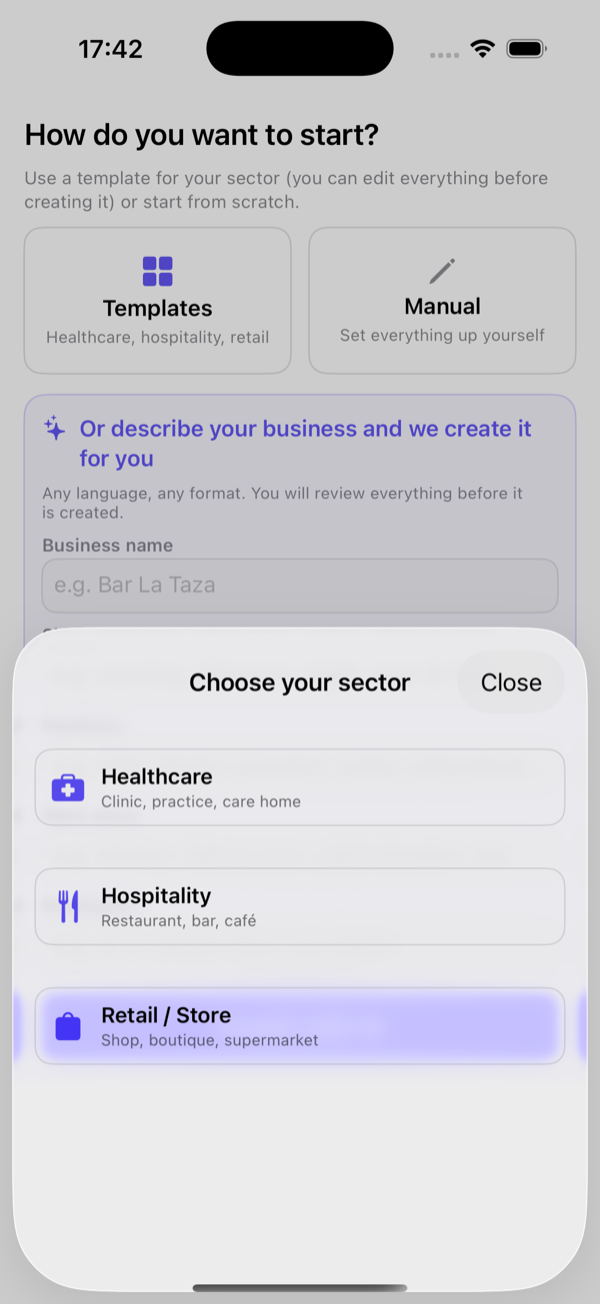
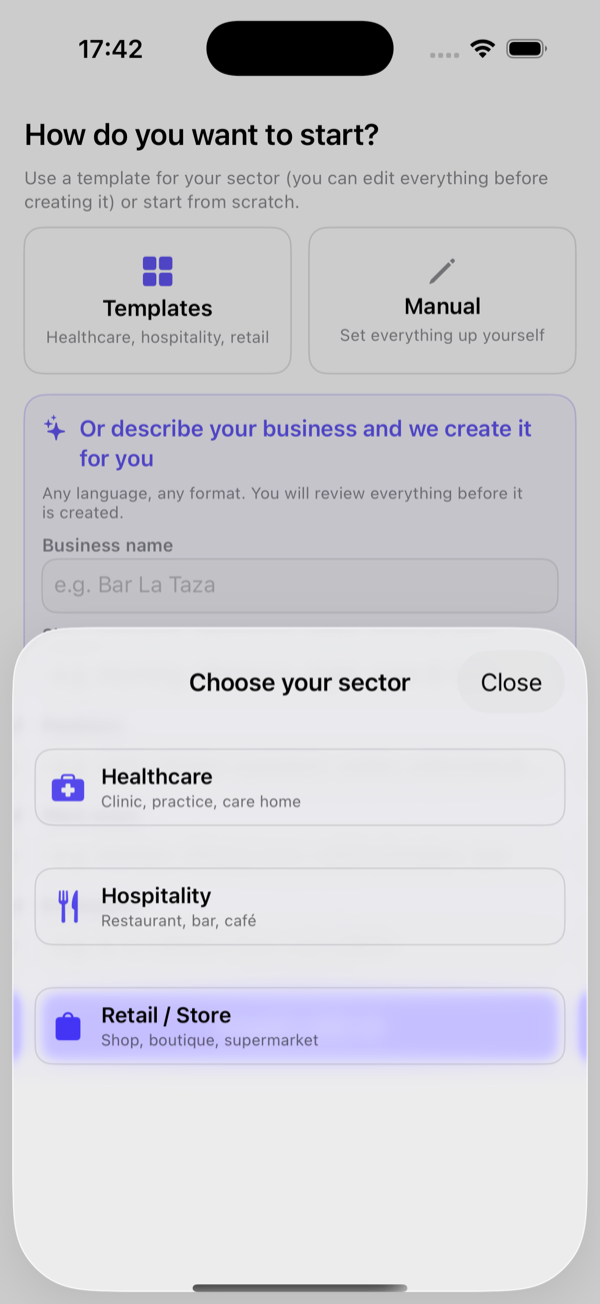
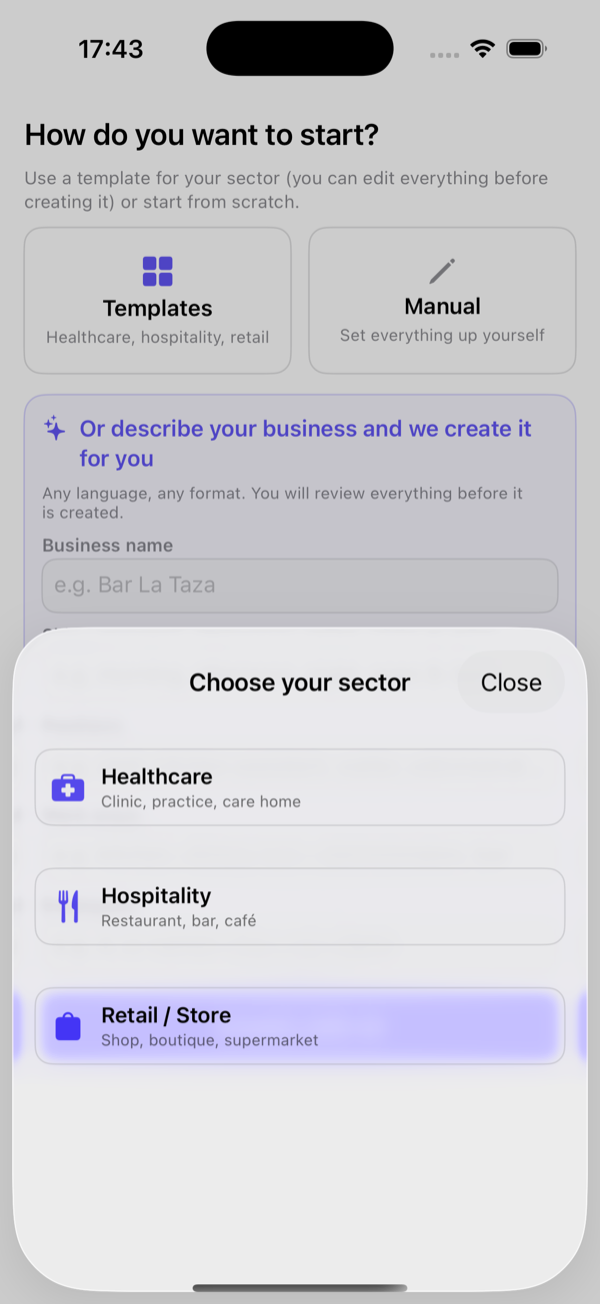
- Tap Templates and choose your sector.
- Review the summary: positions, work areas, shifts with their hours and which position is yours.
- If something does not fit, tap Edit: rename the business, add or remove positions and areas, adjust each shift’s hours.
- Tap Create and start.
Option B: describe your business and let AI build it
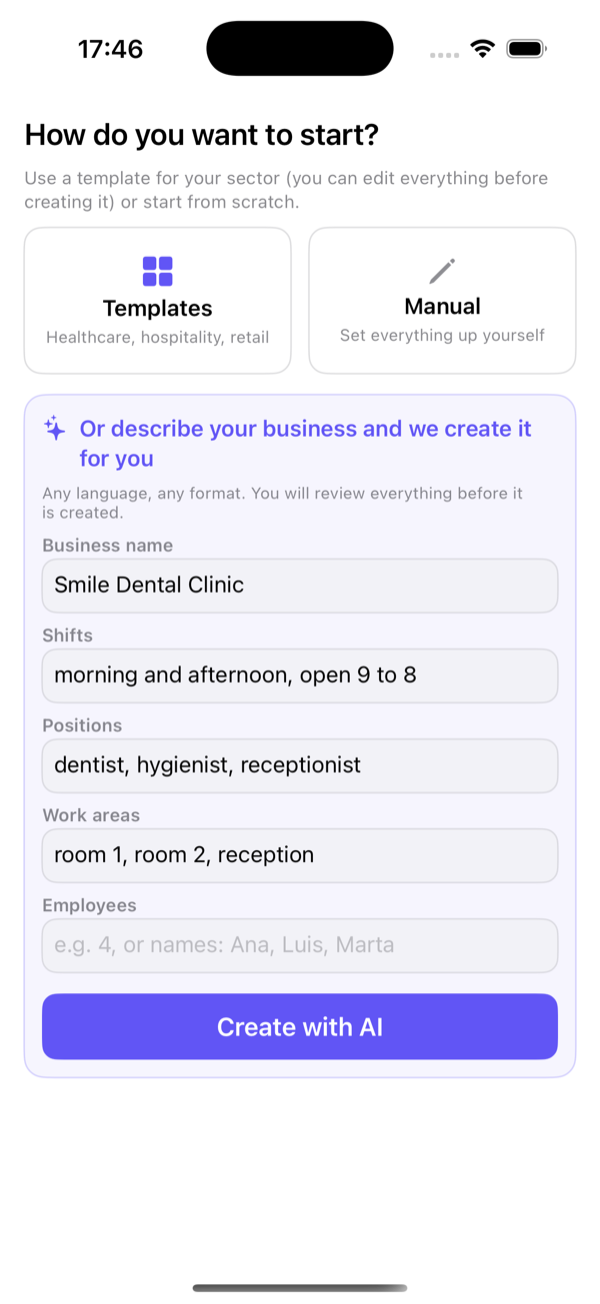
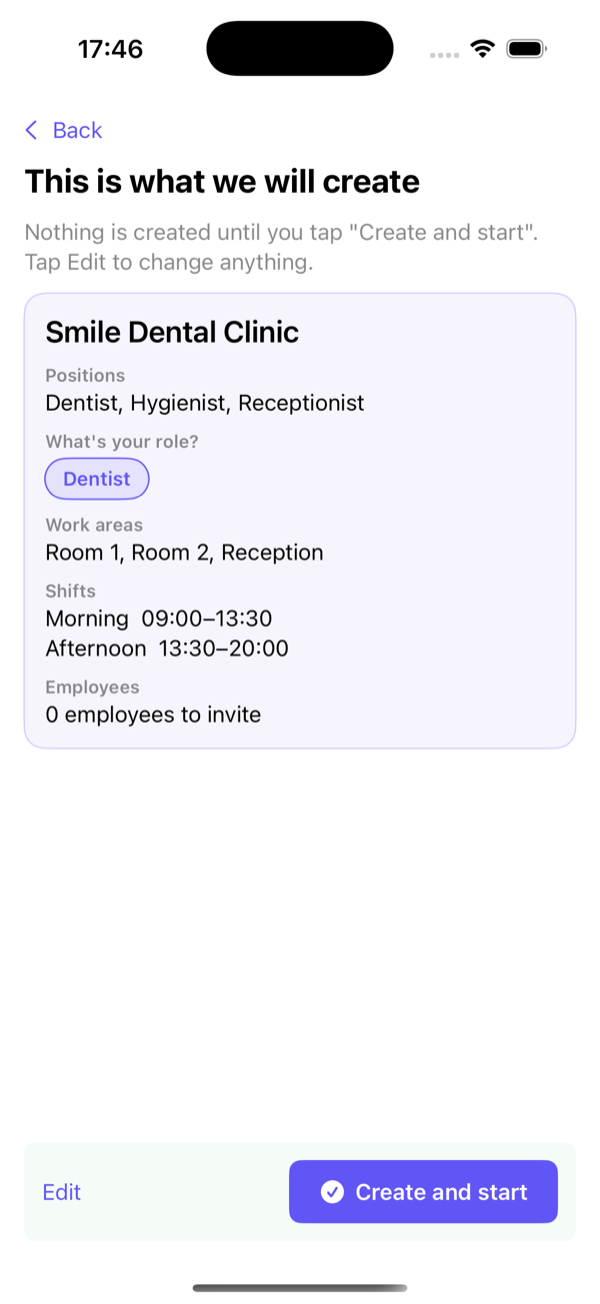
Write in any language and format. An example that works well: shifts "morning and afternoon, open 9 to 8" (AI splits the opening hours between the shifts), positions "dentist, hygienist, receptionist", areas "room 1, room 2, reception", employees "3" or a list of names. Review the proposal and tap Create and start.
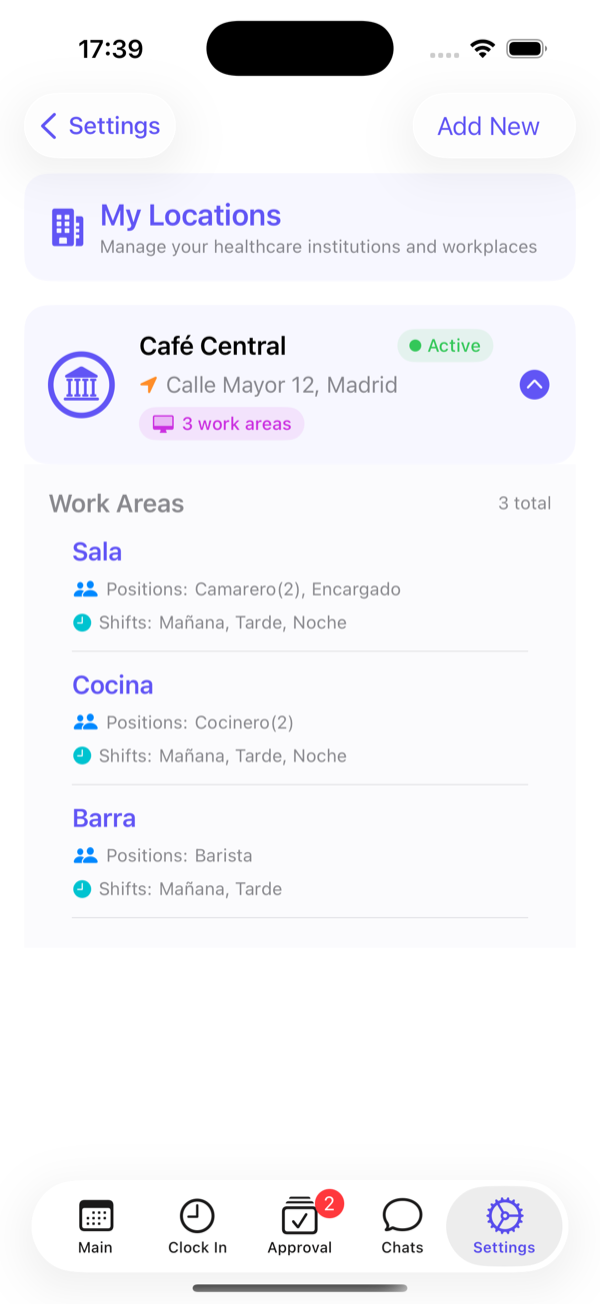
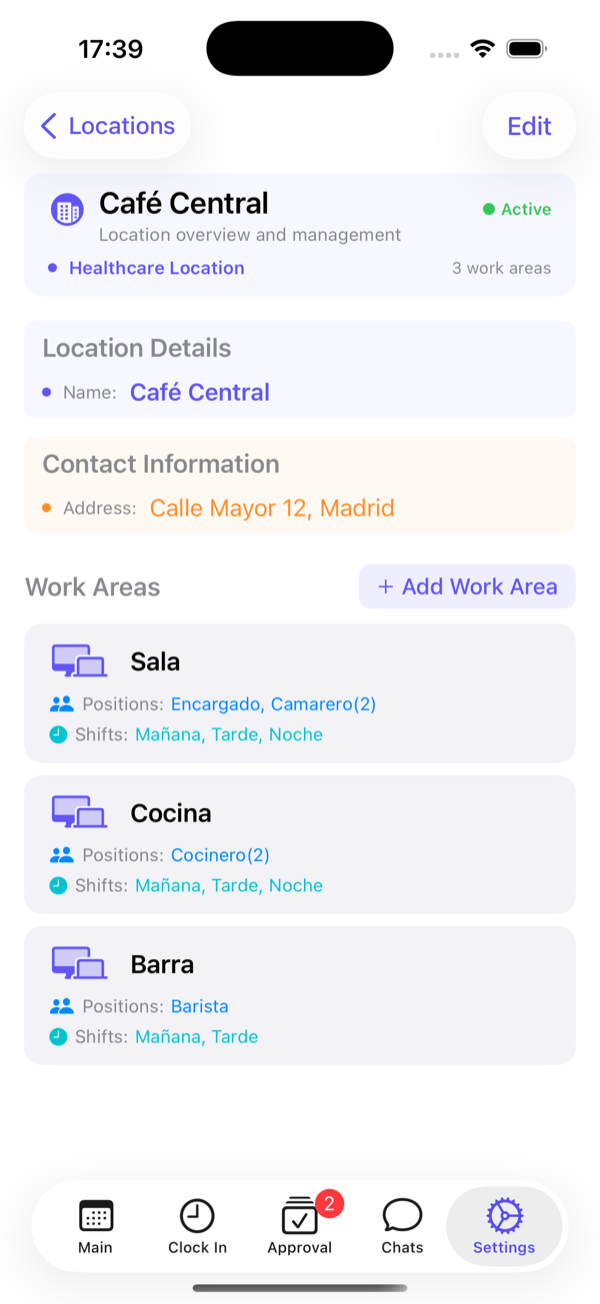
With templates and with AI, every area starts with all positions and one slot per position. Afterwards, adjust in Settings → Manage your Locations which positions belong to each area and how many slots each one has (see Locations and areas).
Option C: manual
Manual opens the step-by-step wizard: shifts and their duration, positions, business details, work areas and employees. Same content as the other two options, but you type everything yourself.
Employees and invitations
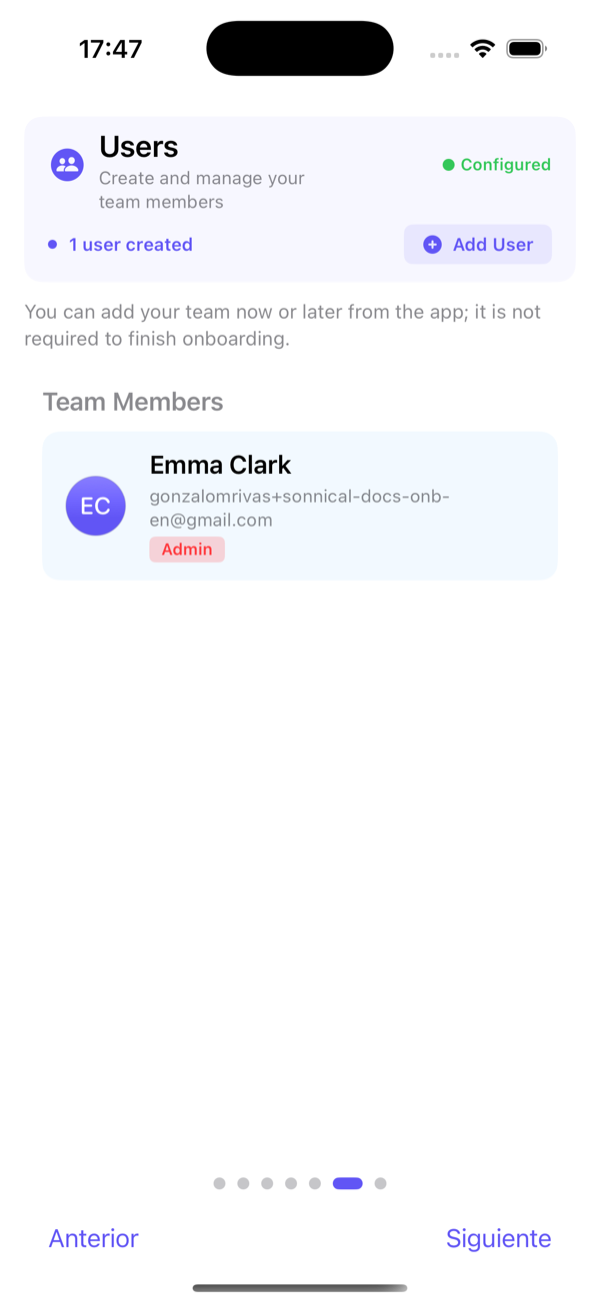
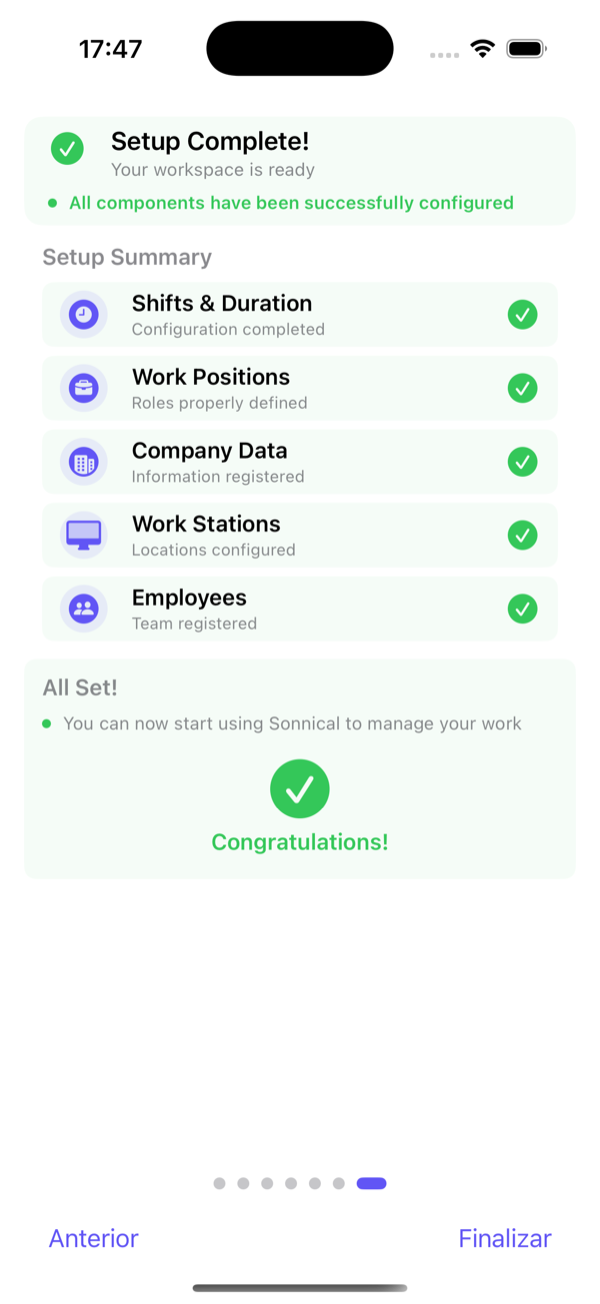
The employees you list are created as pending: they exist in the team (and can already receive shifts) but have not joined yet. Tap Link next to each one to copy or share the invitation through WhatsApp, email or however you like. As soon as they open it they sign in with Google or Apple and see their shifts. You can do it now or later from My Supervised Users.
Key concepts
Five ideas that explain how Sonnical organises work. Worth reading before you generate shifts.
| Concept | What it is | Example |
|---|---|---|
| Location | A venue or site. You can have several depending on your plan. | Café Central |
| Work area | A zone of the location with its own shifts and positions. | Dining room, Kitchen, Bar |
| Position | The job a person does. Each employee has exactly one position. | Waiter, Cook, Barista |
| Slot | How many people of a position are needed in an area per shift. Defined by repeating the position in the area. | Dining room: Waiter(2), Manager |
| Shift | A named time band with a duration. The same shifts apply to every area. | Morning 7-15, Afternoon 15-23, Night 23-7 |
The weekly quota
Each employee has contracted hours (40 by default) and a contract percentage. Sonnical turns that into a quota: shifts per week = contracted hours ÷ shift duration, plus 1 extra shift when overtime is enabled (2 for full-time). Automatic assignment and the AI assigner never exceed that quota, neither in shifts nor in hours.
The quota is counted per calendar week. In Profile you choose whether your week starts on Monday or Sunday; every calculation and the calendar follow it.
What Sonnical does not do for you
- It does not enforce minimum rest between shifts: a night shift followed by a morning shift is valid. If you need that rule, handle it when reviewing the schedule.
- It does not decide which positions belong to each area: review it in Manage your Locations.
- It never creates shifts in the past: everything generated or assigned is from today onwards.
Calendar and views
The Main tab is your calendar. For an employee it shows their shifts and time off; for an administrator it also opens the whole team's schedule.
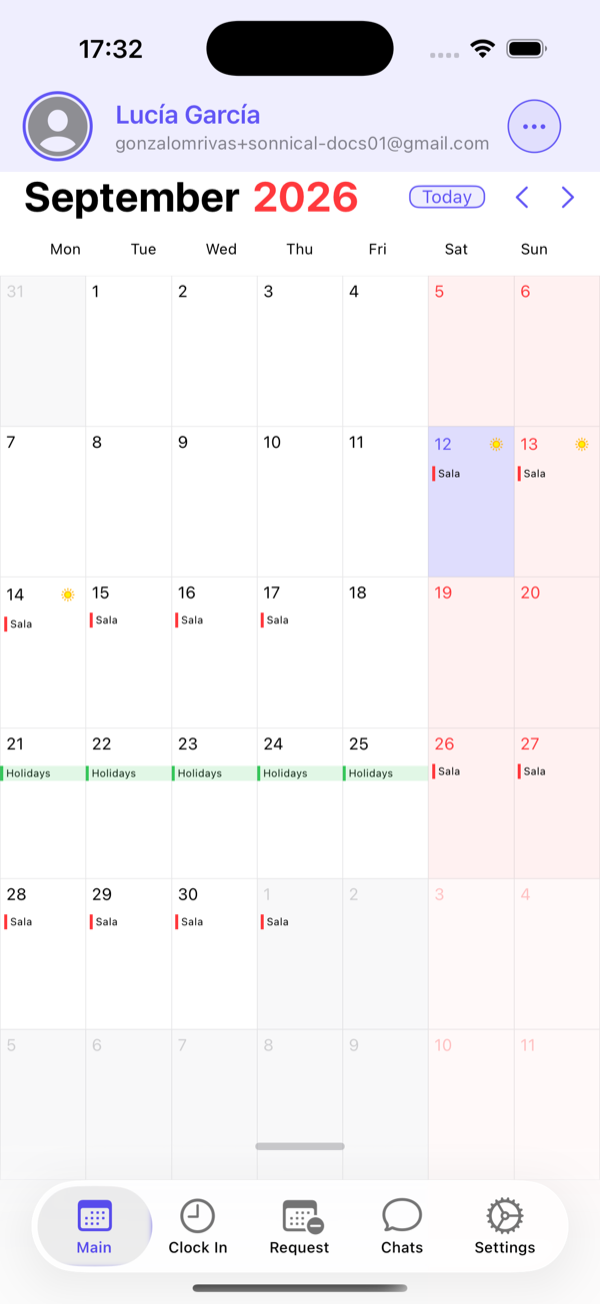
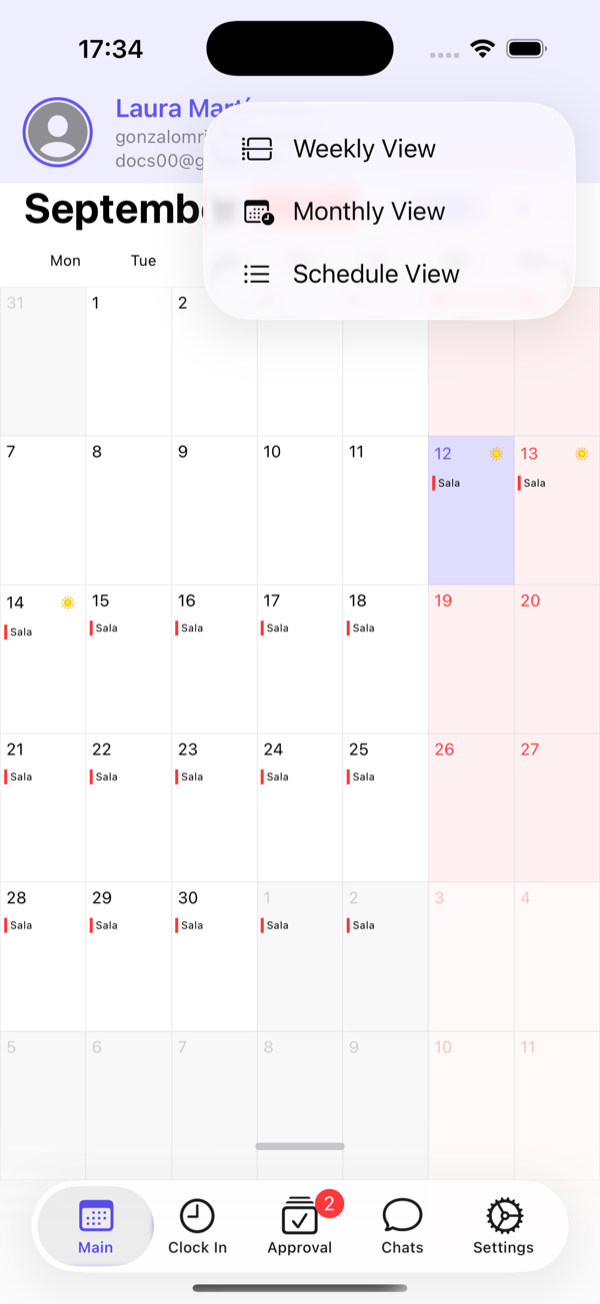
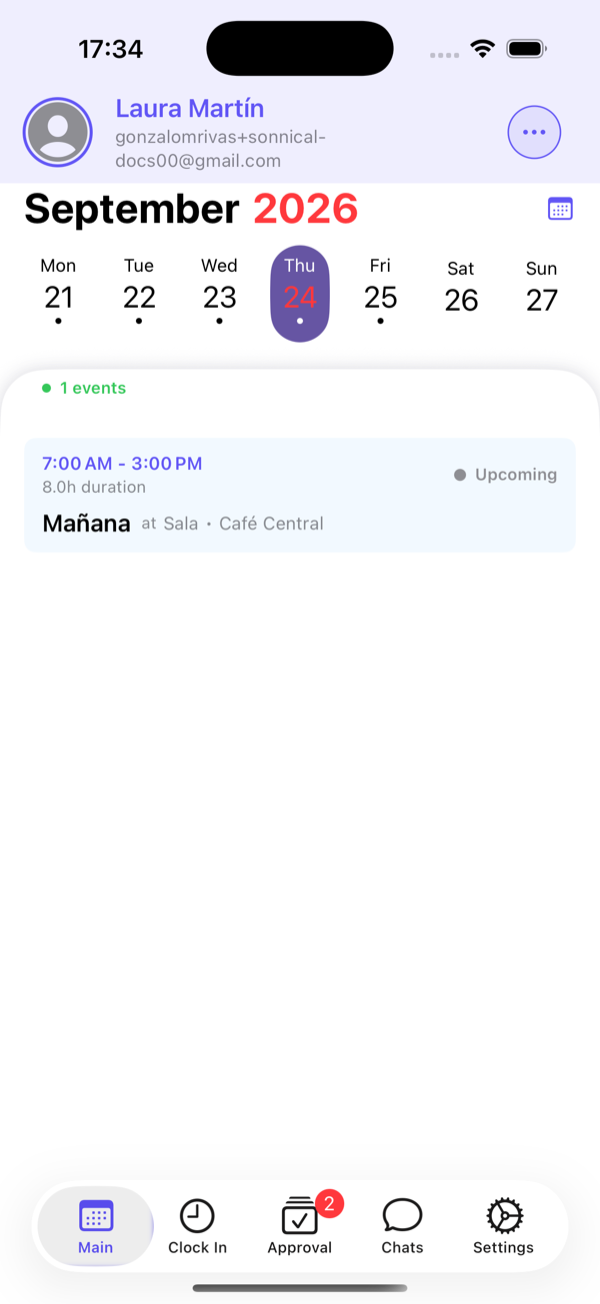
- Monthly: at a glance, with the area name on each shift. Days with approved time off are marked.
- Weekly: swipe to change week and tap a day to see its shifts with times and duration.
- Schedule (administrators and sub admins): every slot of a position, day by day, with who covers it. See AI Assign.
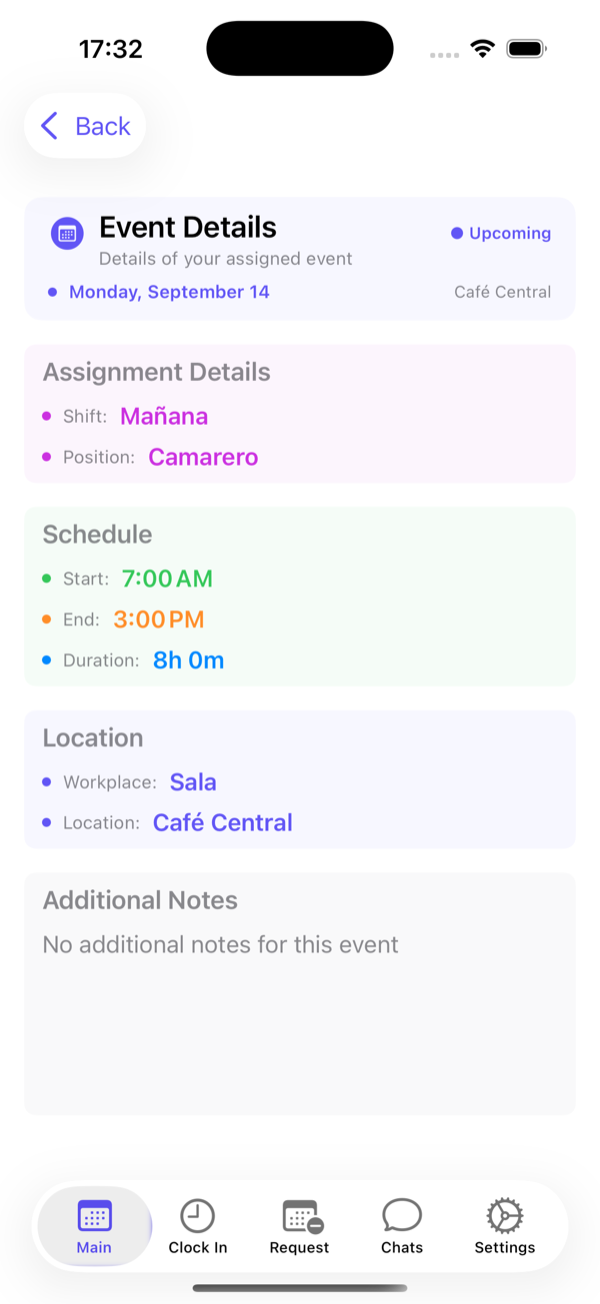
Tap any shift to see its detail. Administrators can delete it from here; employees use it as the starting point to request a swap (see Messages).
On the web
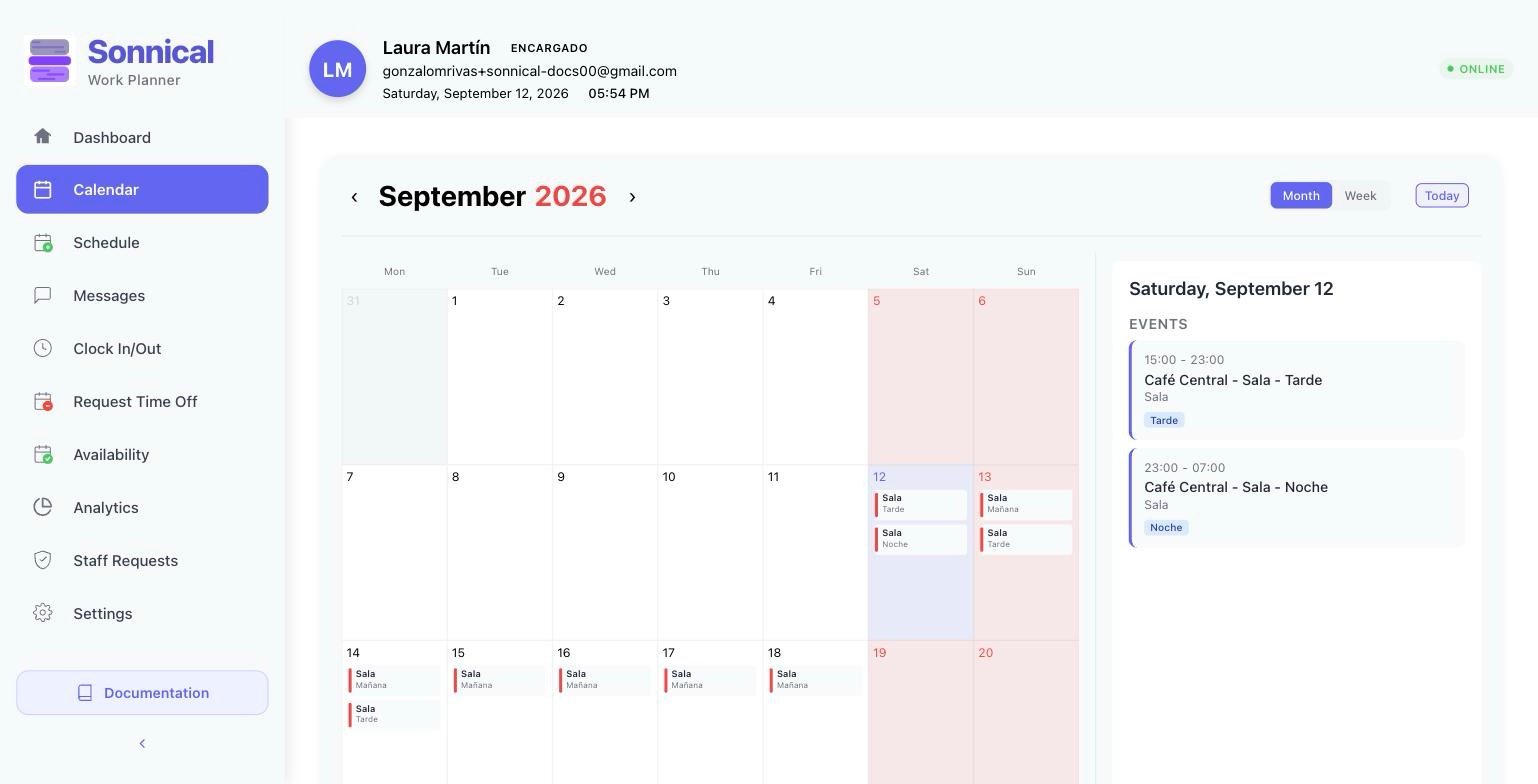
The web calendar has month and week views plus a side panel with the selected day's shifts. To manage the team use the Schedule tab (see Web).
Time off and holidays
Employees request time off from the app; the administrator (or the sub admin of that position) approves or rejects it. Approved time off blocks automatic assignment on those days and shows in the calendar.
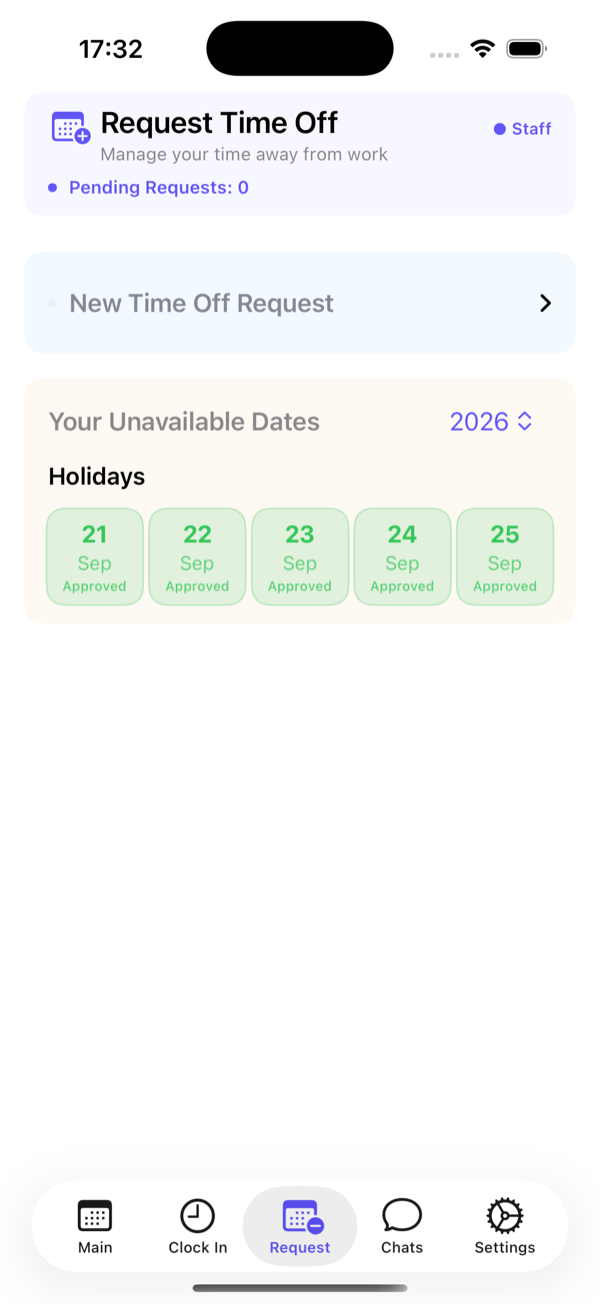
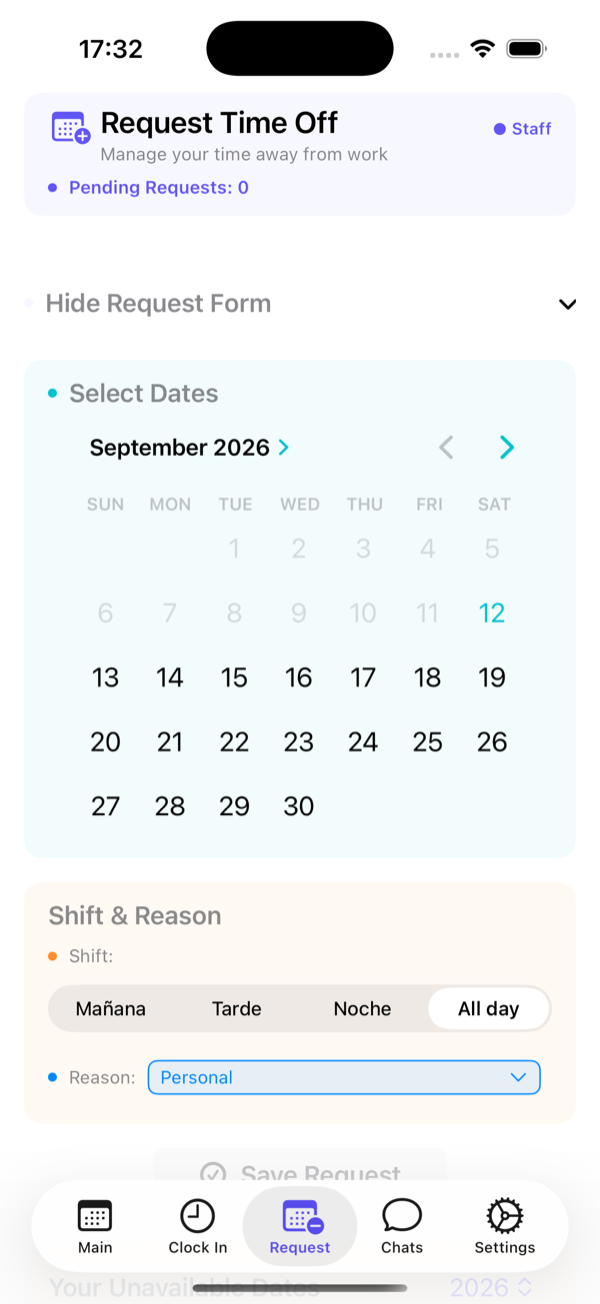
Requesting time off (employee)
- Open the Request tab (or Settings → Request Time Off).
- Tap New time off request and tap the days on the calendar. You can select several.
- Choose the affected shift or All day, and the reason: personal, holidays, sick leave, studies…
- Tap Save request. It stays pending until reviewed.
Holiday days are deducted from your yearly balance (shown in your profile) when the administrator approves them.
Approving (administrator)
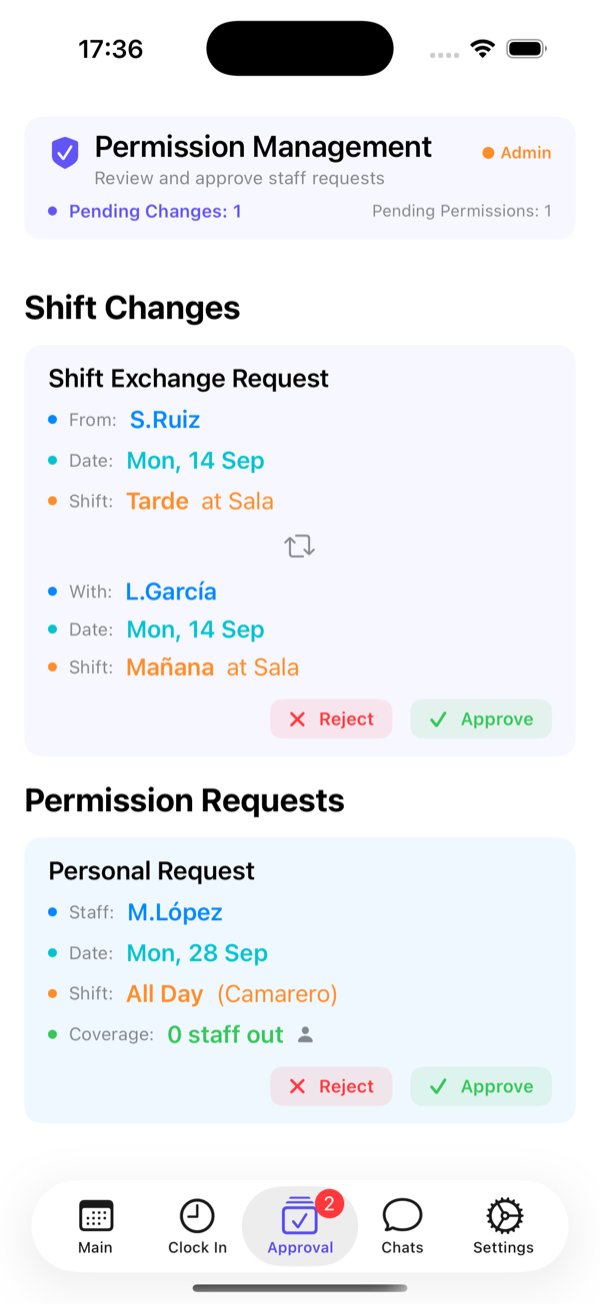
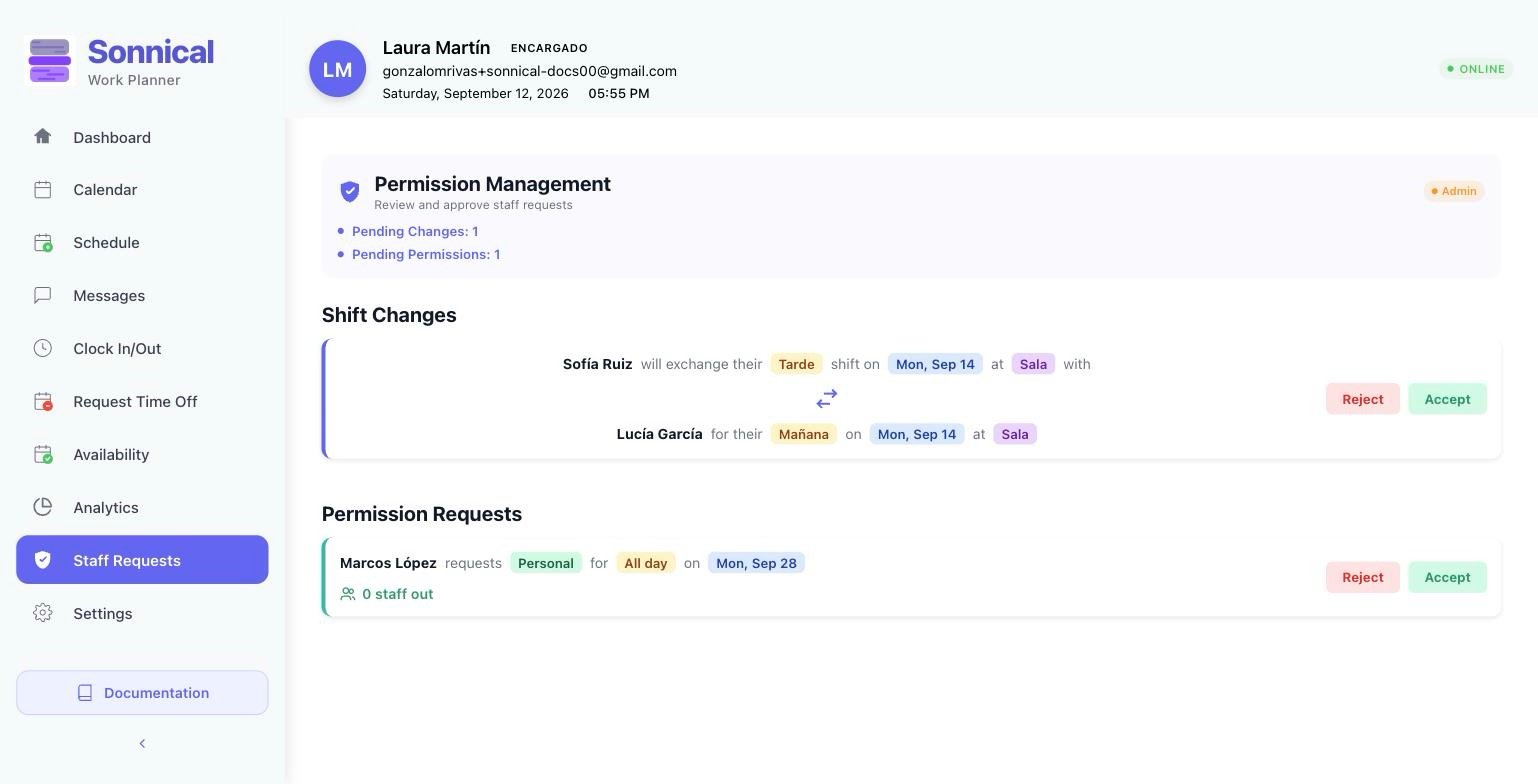
The Approval tab groups everything pending. Each time off request shows how many employees of the same position will already be out that day, so you can decide with context. Accept or Reject notifies the employee right away.
If you turn off Require approval for permissions in Settings, time off is approved automatically when requested.
Availability and freelancers
There are two kinds of staff and Sonnical treats them differently when assigning:
- Regular staff: assumed available always, unless they have approved time off.
- Freelancers: only receive shifts on the days and shifts they have marked as available. Set when creating the user or in their profile (Freelancer).
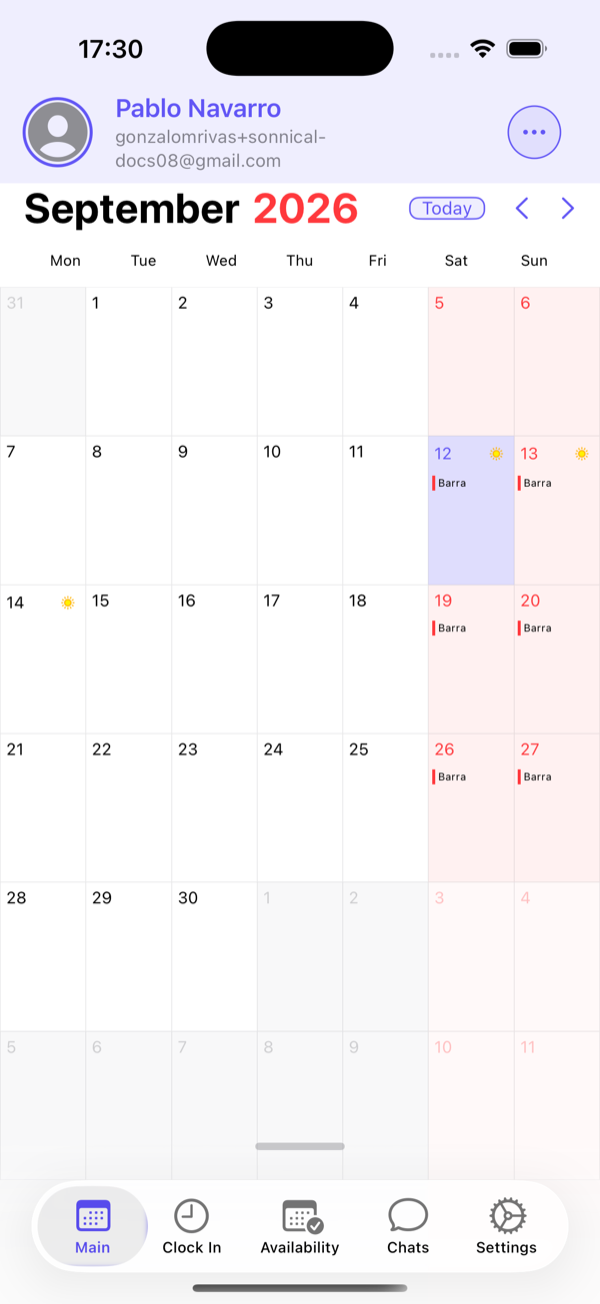
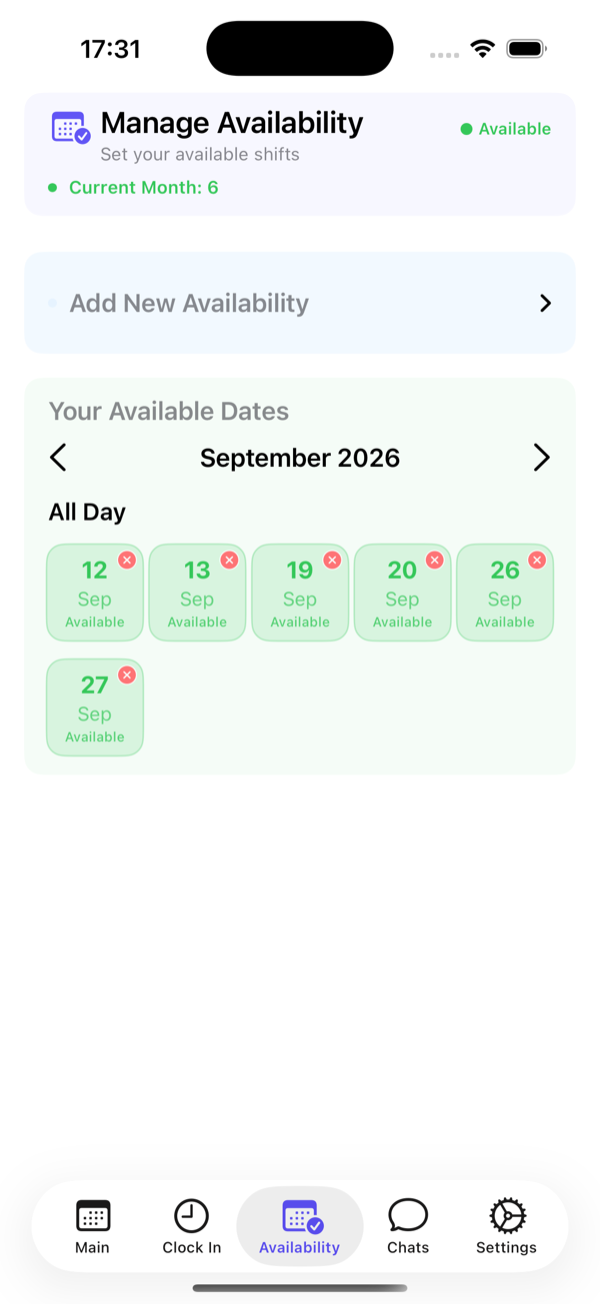
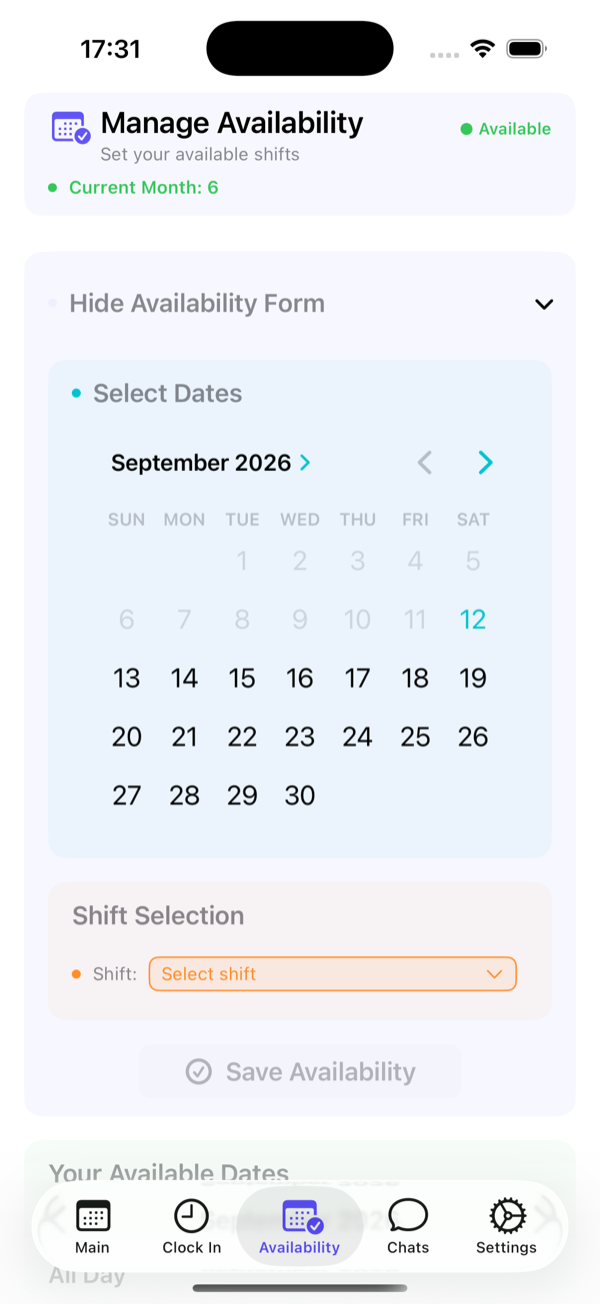
- Open the Availability tab.
- Tap Add availability, tap the days and choose the shift or All day.
- Tap Save availability. Remove a day with the ✕ on its card.
When generating shifts, the optimal model prioritises regular staff and uses available freelancers for what is left. In rotation, freelancers are not part of the cycle: they fill gaps on the days they are available.
The Allow availability submission option in Settings turns this feature on or off for the whole team.
Clocking in and out
The Clock In tab shows today's shift and lets you clock in and out. You can only clock in if you have a shift assigned that day.
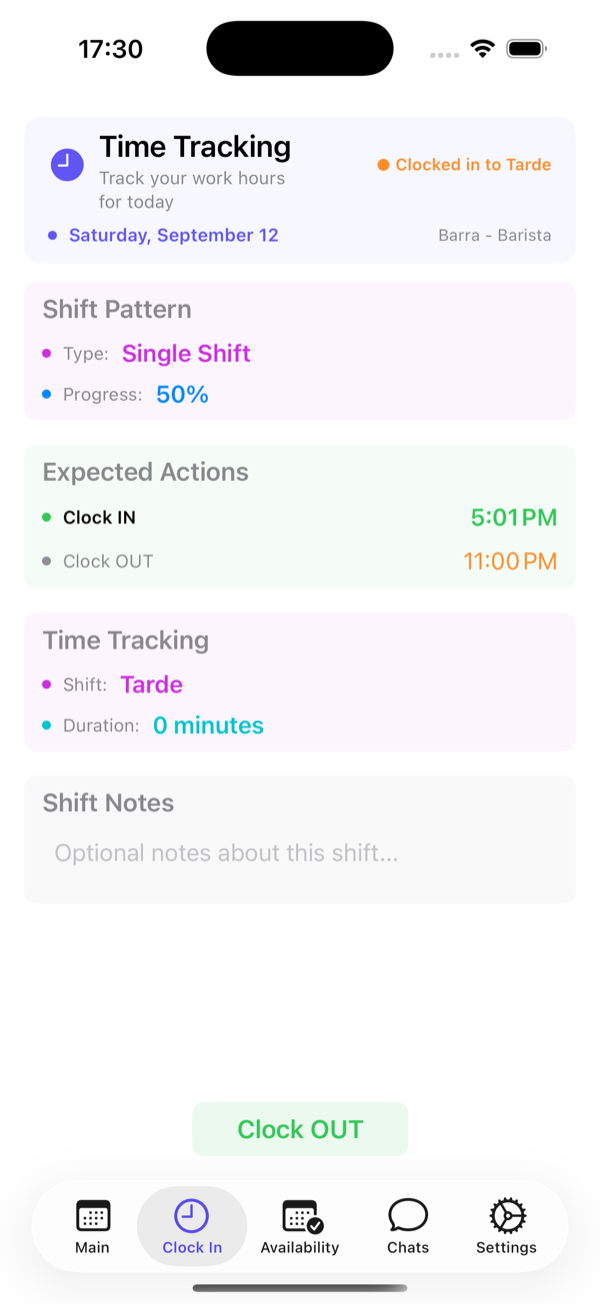
- Open Clock In. You see today’s shift with its planned times.
- When you arrive, tap Clock IN. When you finish, Clock OUT.
- If you work two shifts back to back (say morning and afternoon) the pattern is consecutive: one clock-in at the start and one clock-out at the end.
- If your shifts are not consecutive, clock in and out for each one.
| Status | Meaning |
|---|---|
| Not started | You have not clocked in yet. |
| Clocked in … | You are in; the duration counter is running. |
| Completed | Clock-in and clock-out recorded. |
| With issue | A clock-out is missing or the hours do not match; the administrator sees it flagged. |
Sonnical closes the record automatically at the shift’s planned end time and flags it for review. Tell your manager if the real hours were different.
The Require clock in/out option in Settings enables time tracking. On the web, Clock In/Out shows the team’s clock-in analysis.
Messages: swapping and giving away shifts
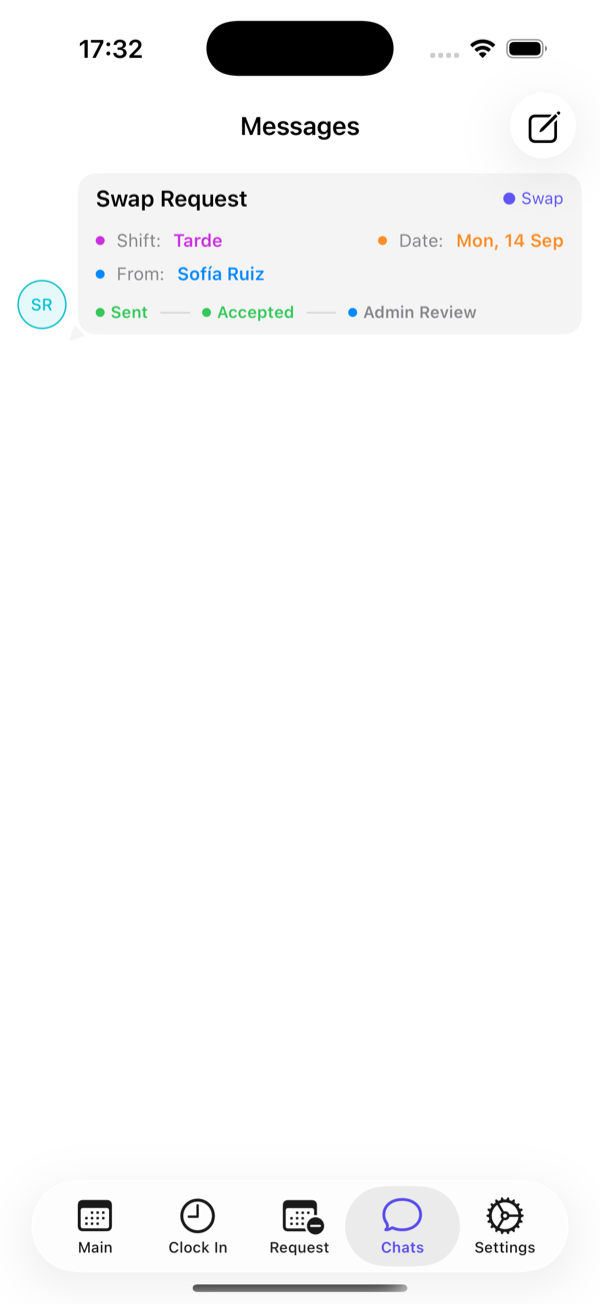
The Chats tab is not a free chat: it is the system for employees to swap or give away shifts among themselves, with the administrator's approval when configured that way.
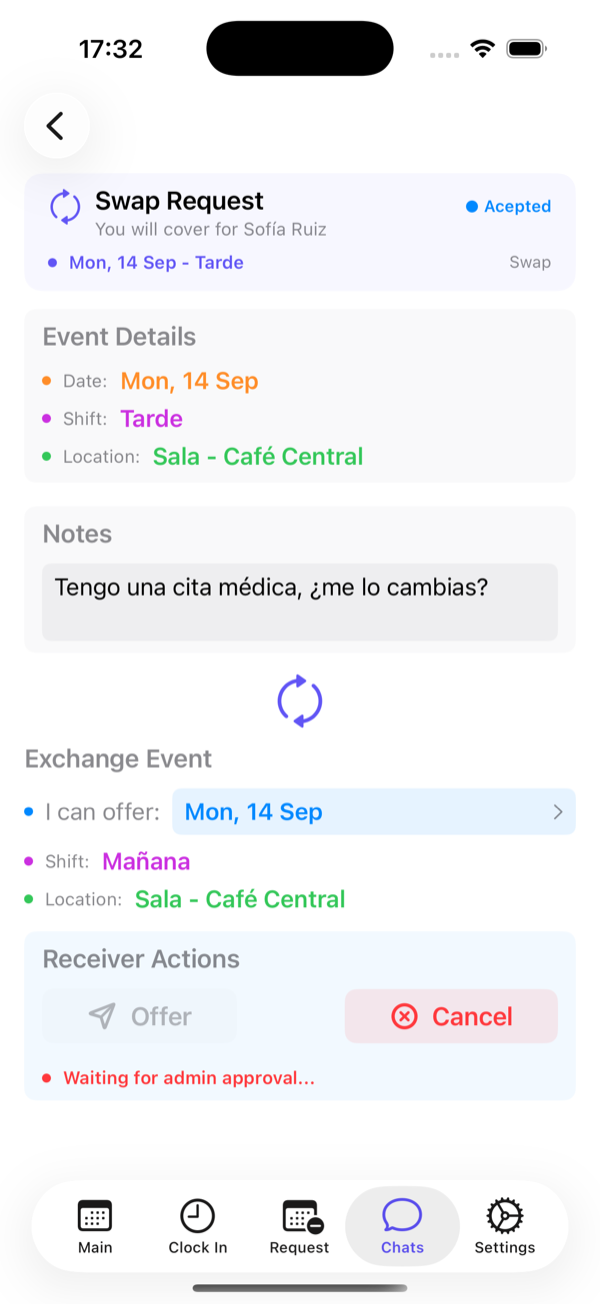
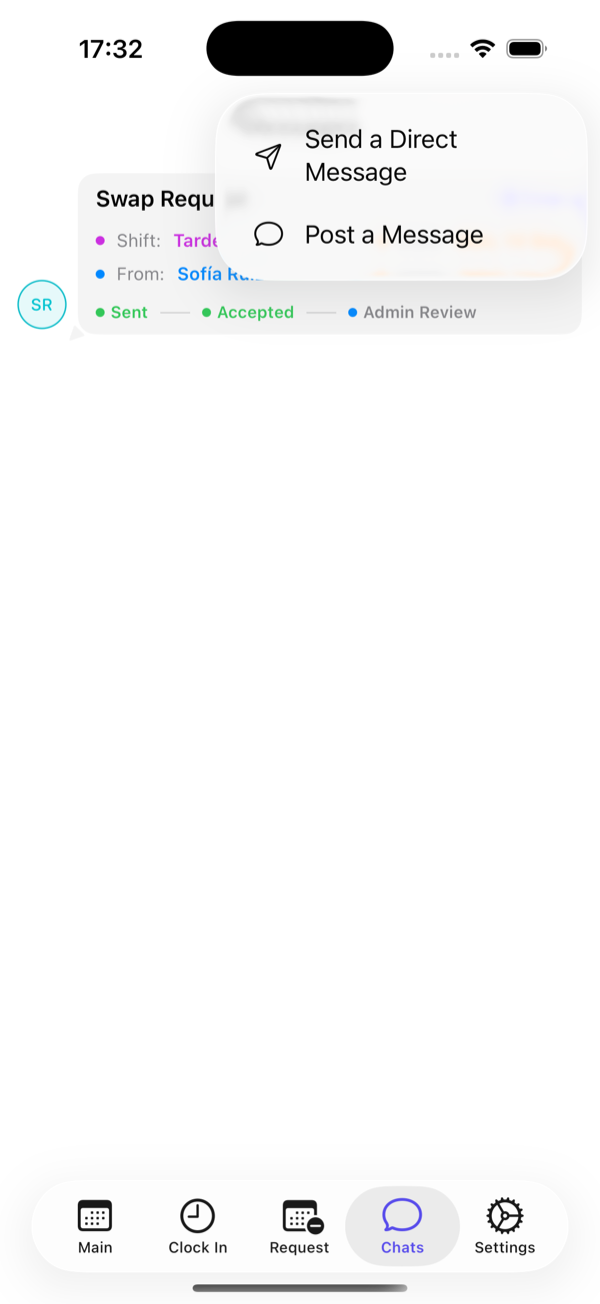
Request types
| Type | What it is | Who receives it |
|---|---|---|
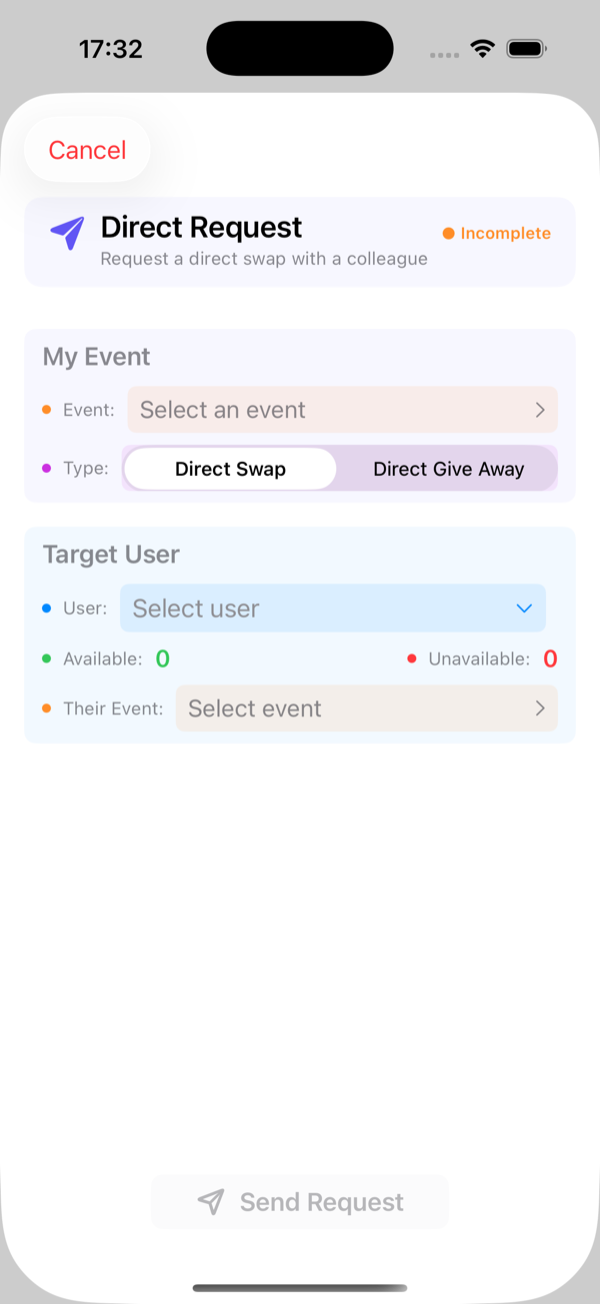
| Direct swap | You offer one of your shifts to a specific colleague in exchange for one of theirs. | Only that person. |
| Direct give away | You hand one of your shifts to a specific colleague, nothing in return. | Only that person. |
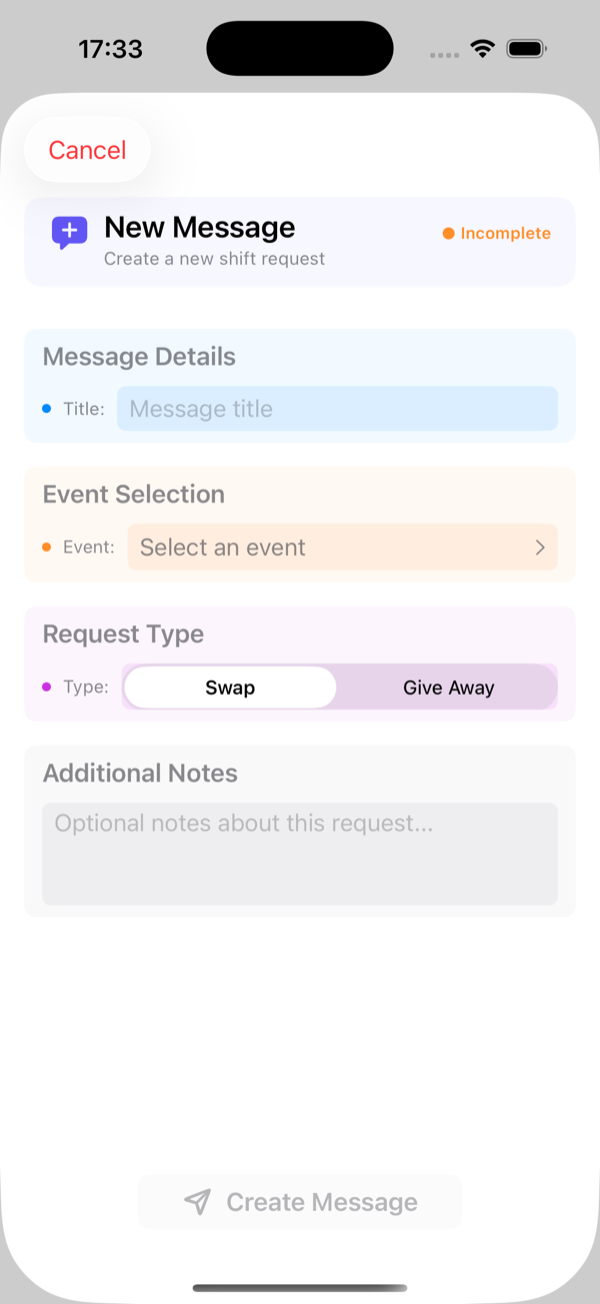
| Posted swap | You post that you want to swap a shift; anyone in your position can offer one of theirs. | Your whole position. |
| Posted give away | You post a shift you want to give away; whoever wants it claims it. | Your whole position. |
How a swap works
- Employee A creates the request (direct or posted) choosing their shift.
- Employee B accepts it from Chats, offering their shift if it is a swap.
- If the business requires approval, the request goes to the administrator’s Approval tab (or the sub admin of that position). On approval the shifts are swapped; on rejection everything stays as it was.
- If no approval is required, the change applies the moment B accepts.
An employee can only give away or swap shifts that are theirs, and can only claim shifts offered to them or that are free. Nobody can take a shift away from someone else.
Generate and assign shifts
Settings → Generate Events creates every slot of a period (days × areas × shifts × slots) and assigns them with the strategy you choose. It is the usual way to plan a week, a month or more.
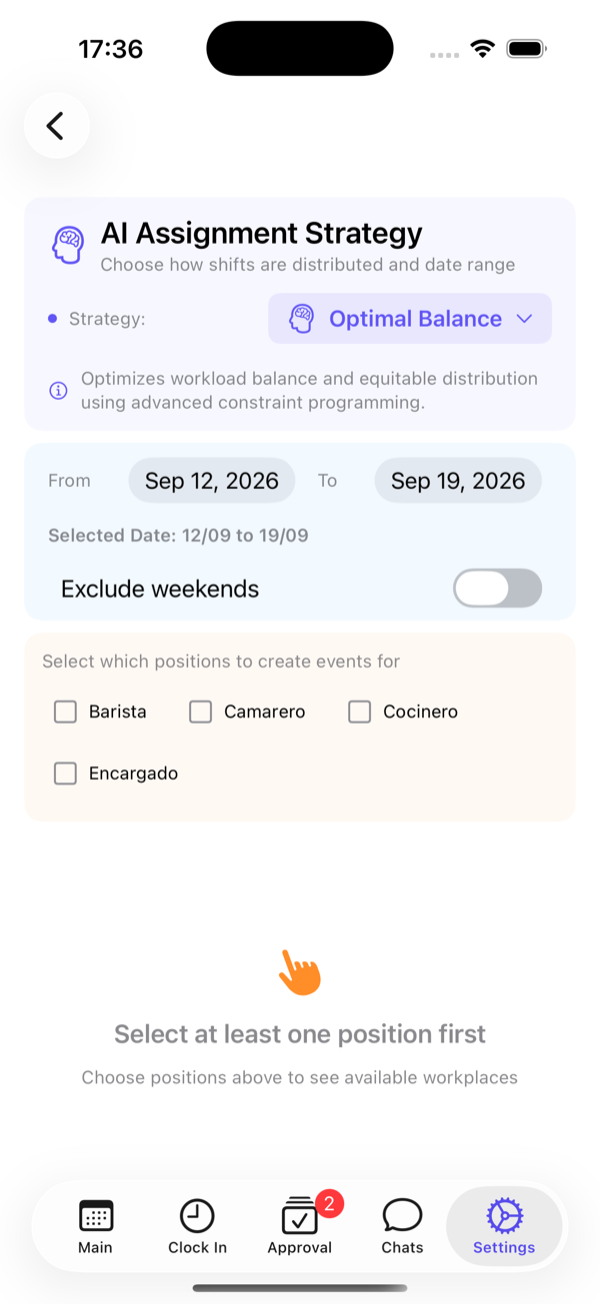
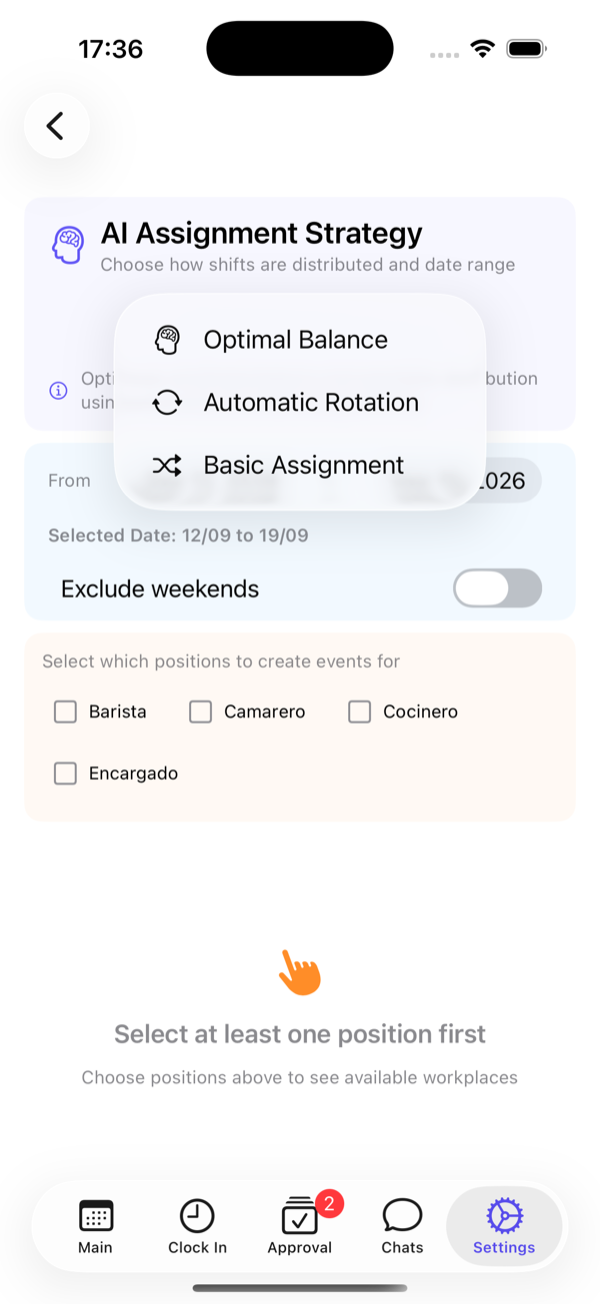
- Pick the strategy: Optimal Balance, Automatic Rotation or Basic Assignment (see below).
- Set From and To. Only dates from today onwards are accepted.
- Turn on Exclude weekends if you are closed on Saturdays and Sundays.
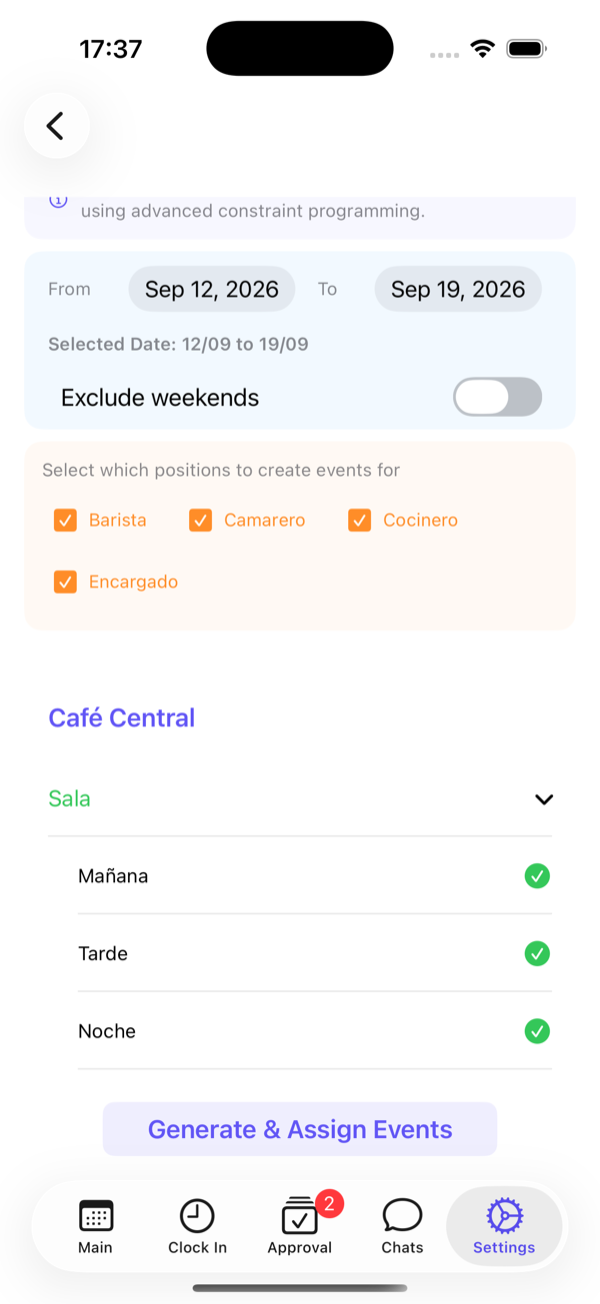
- Tick the positions you want to create shifts for. Only areas that have those positions appear.
- Expand each area and tick the shifts to generate in it.
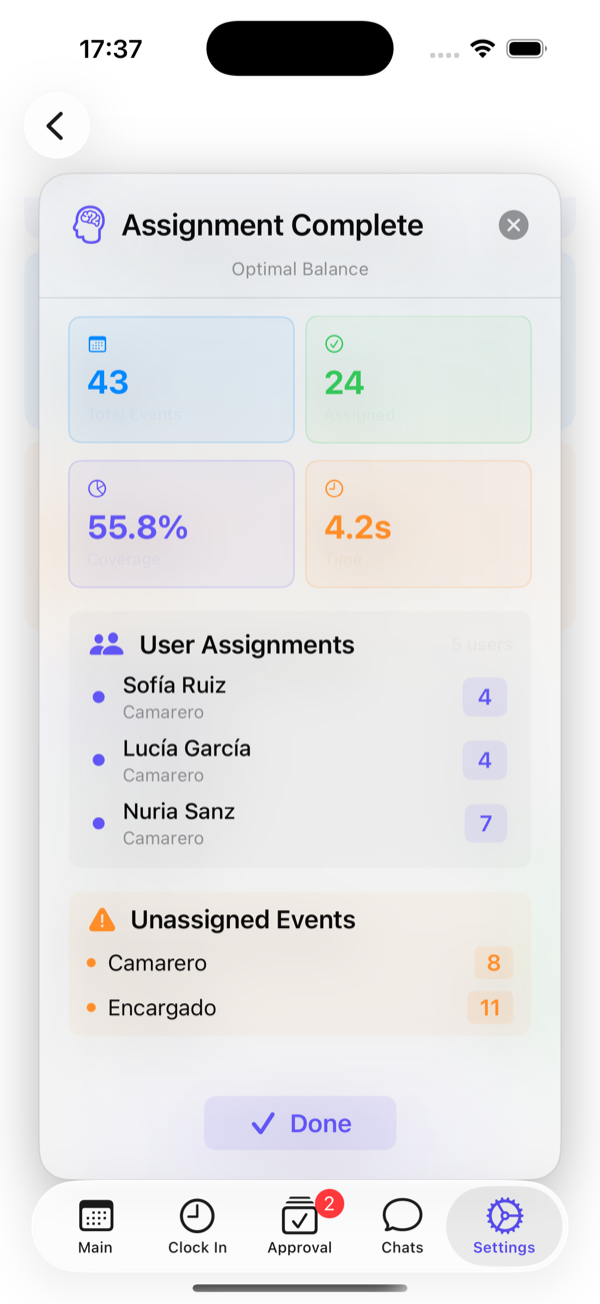
- Tap Generate & Assign Events and wait for the summary.
What you can rely on
- No duplicates. If you generate the same period twice, or overlapping periods, each slot exists only once. You can re-run generation safely.
- Existing assignments are kept. A shift that already has a person is never touched. Only empty slots get filled.
- The whole context counts. The weekly quota considers the shifts each person already has, in any area, even outside the chosen range.
- Only what you selected. Only the positions, areas and shifts you ticked are created and assigned. Tick everything and everything is included.
- Future only. Shifts whose time has already passed are ignored.
- New slots. If you add a slot to an area (say, a second Waiter) and generate again, only the new slot is created; existing ones stay as they are. If you remove a slot, existing shifts are kept until you delete them.
If the summary shows unassigned shifts it is because nobody fits: everyone in the position is at their quota, absent, without availability (freelancers) or there are simply more slots than people. Review the schedule and cover them by hand, with freelancers or later with AI Assign.
The three strategies
| Strategy | How it distributes | Use it when |
|---|---|---|
| Optimal Balance | Distributes so everyone gets close to their contracted hours, balances the load, avoids overlaps and prefers regular staff over freelancers. May take a couple of minutes with many shifts. | You want the fairest distribution without a fixed pattern. |
| Automatic Rotation | Each person works a week of mornings, then a week of afternoons, then nights… across each area. See Rotation. | Your team rotates shifts and you want predictability. |
| Basic Assignment | Weighted random distribution (fewer shifts, higher probability), respecting quotas and overlaps. | You need something quick and simple. |
How rotation works
Rotation is computed per position. For each position, Sonnical builds a list of cells: one per area × slot × shift, ordered by area and, within each area, by the shift start time. Each person occupies one cell for a week and moves to the next cell the week after.
With one area and Morning, Afternoon and Night shifts, a person's sequence is: morning → afternoon → night → morning… With several areas, they go through the shifts of one area first and then move to the next: Dining room morning → Dining room afternoon → Dining room night → Terrace morning → …
More people than cells: wildcards
If there are more people than cells (say 4 cooks for 3 shifts), nobody rests a whole week. The extra people that week are wildcards: they work several days spread across the week, covering in turn the cells of the regular holders, who get those days off. Roles rotate with the week: the wildcard moves to mornings next week, and so on.
Fewer people than cells
The leftover cells stay uncovered and rotate every week, so the same shift is not always the one missing. Cover them with freelancers or by hand.
Absences and continuity
- If a holder is off for a day (approved time off), that week’s wildcard covers them with priority.
- If someone is on holiday for the whole week, their cells stay free and, when they come back, they rejoin at the position the cycle has reached. Nobody else’s rotation changes.
- When generating a new week, Sonnical looks at the last four assigned weeks to continue the rotation where it was. It does not matter which device you generate from: the result is the same.
- Weekly quota and overlaps are respected in rotation too.
Generate rotation in blocks of 4 to 8 weeks and, once published, adjust by hand whatever is needed. Later generations respect what you changed.
AI Assign from the schedule
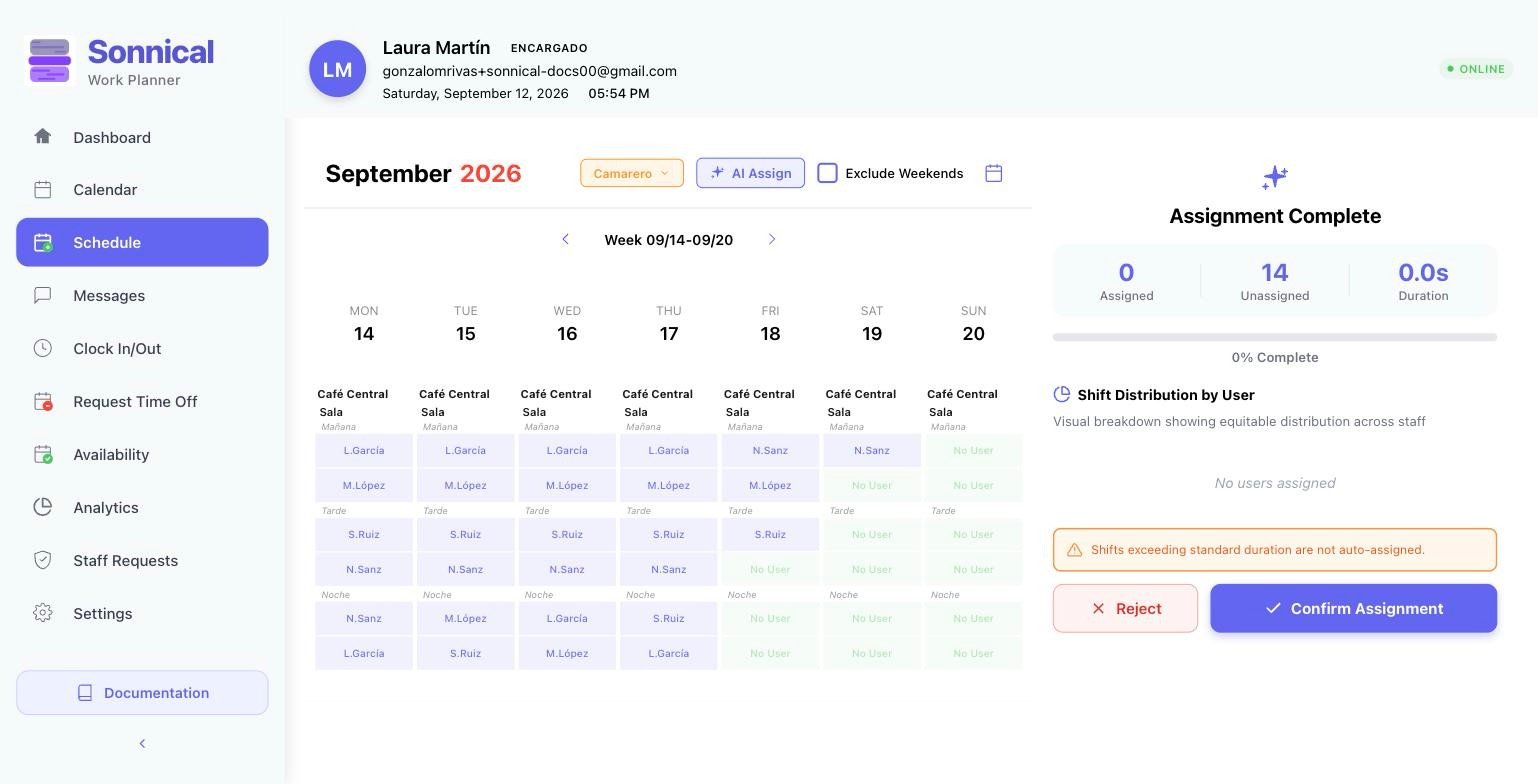
The schedule shows, for one position, every slot of the visible week and who covers it. The AI Assign button proposes an assignment for that week which you review before anything is saved.
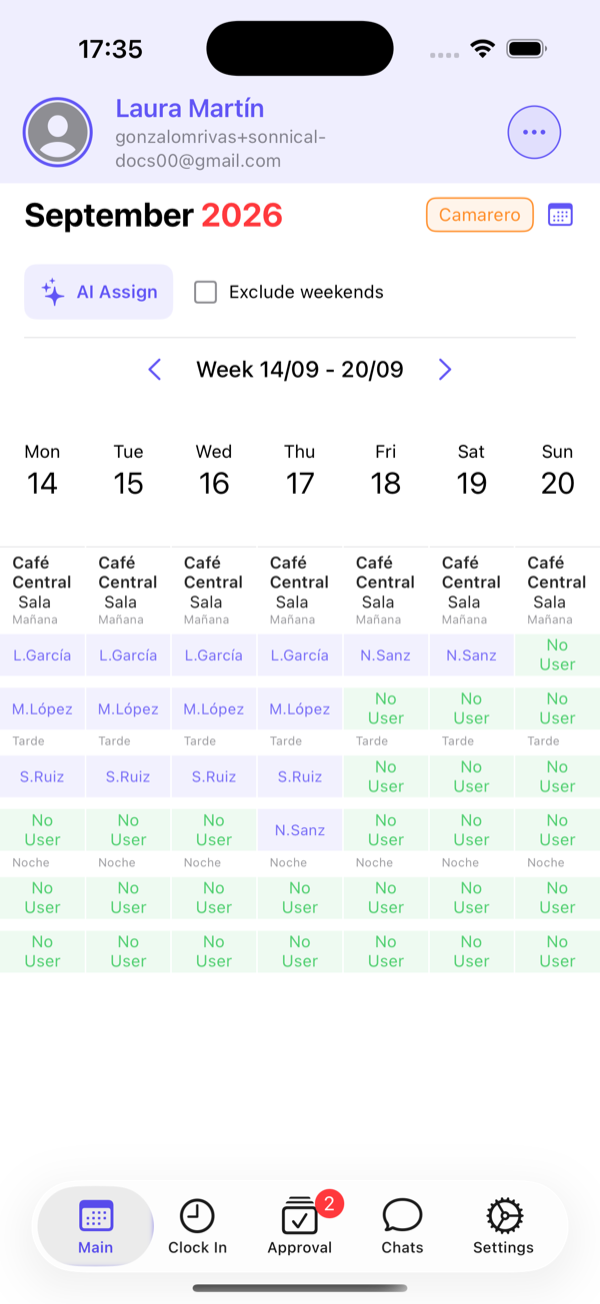
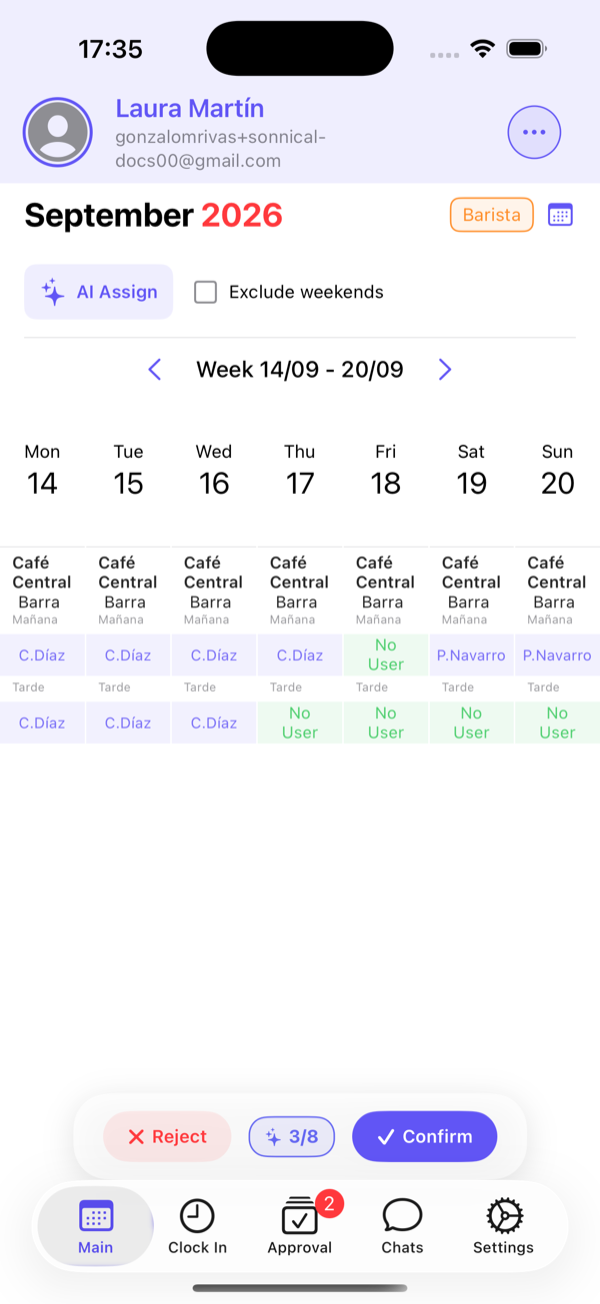
- In Main tap ··· → Schedule View and pick the position with the selector in the corner.
- Navigate to the week you want to cover.
- Tap AI Assign. Sonnical creates any missing slots, fills the empty ones with the optimal model and draws them as a proposal.
- Review. Tap Confirm to save or Reject to leave everything as it was.
What it takes into account
- It creates slots only in areas that have that position, and as many as the slots defined.
- Existing slots without a person are part of the proposal; those already assigned are never touched, but they count towards that person’s quota.
- It never proposes anything for shifts that have already ended.
- If everyone is at their quota the proposal can be 0: that is correct, it means nobody can take more shifts that week.
Team and permissions
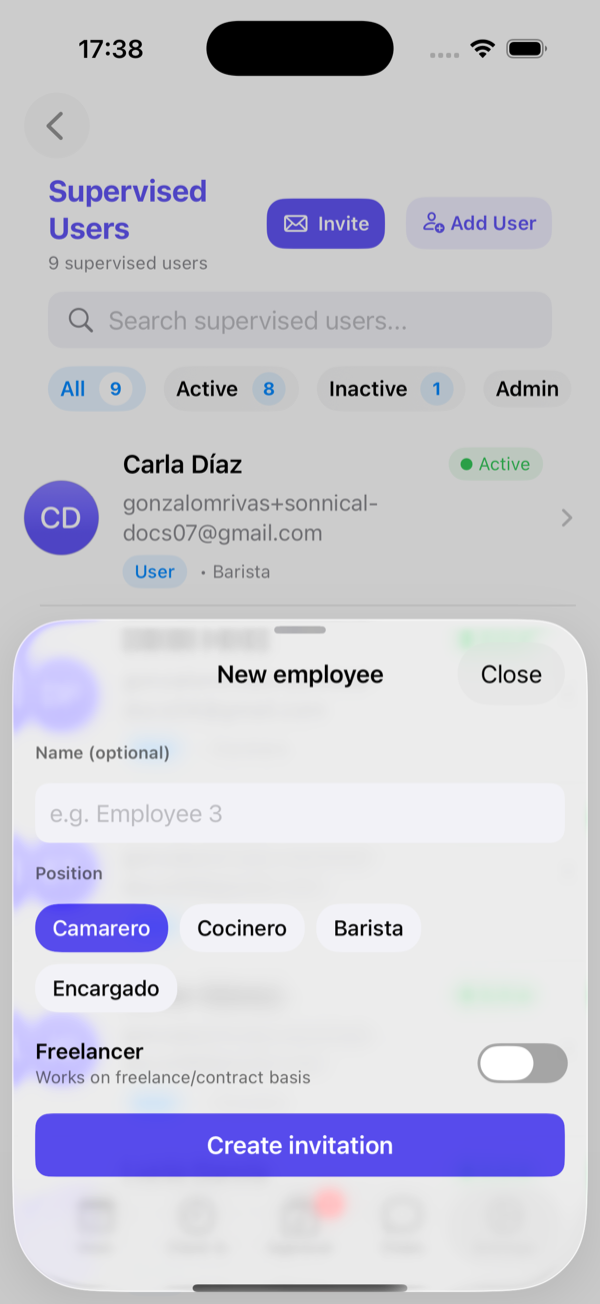
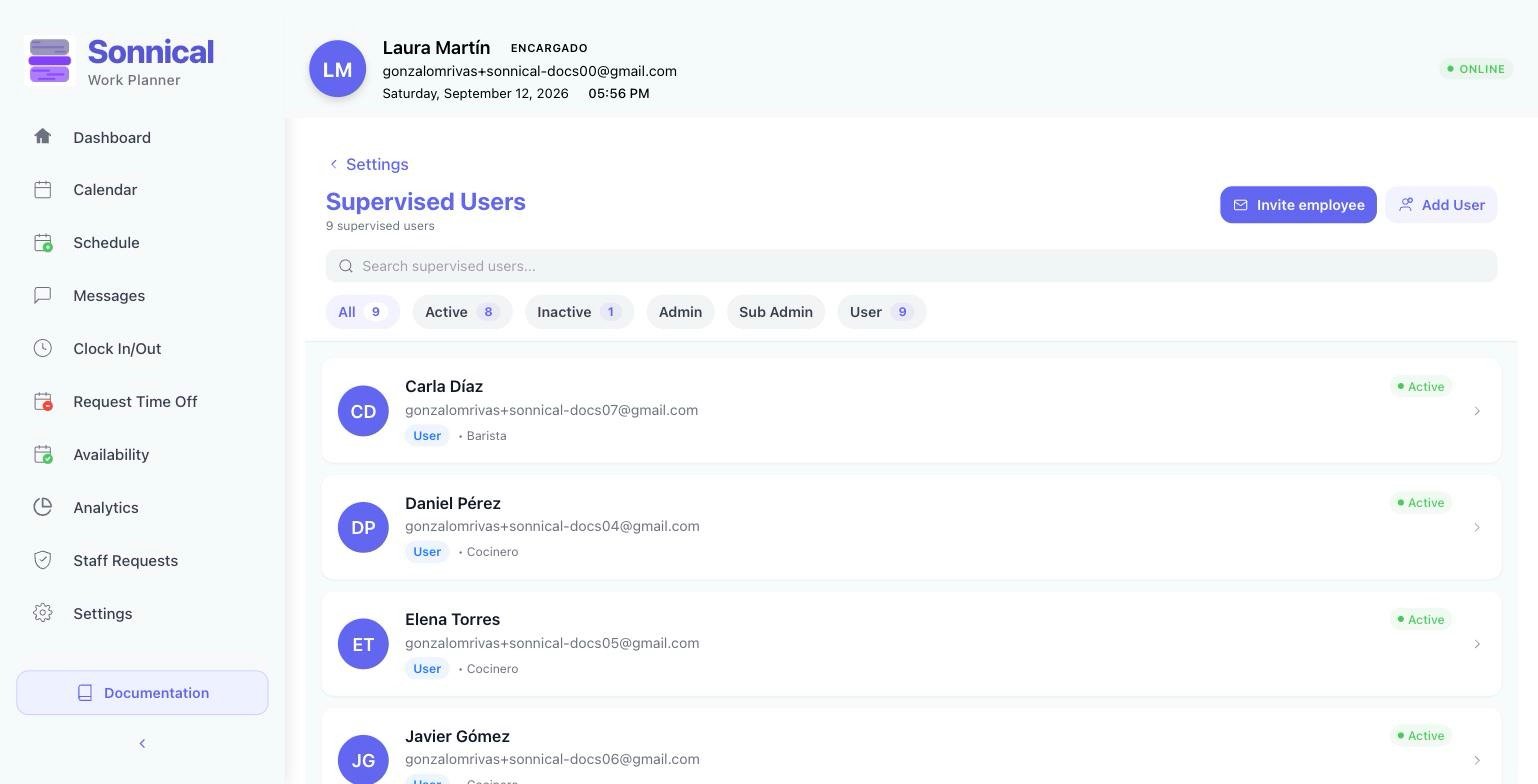
Settings → My Supervised Users is the team hub: view, invite, add, edit and deactivate people.
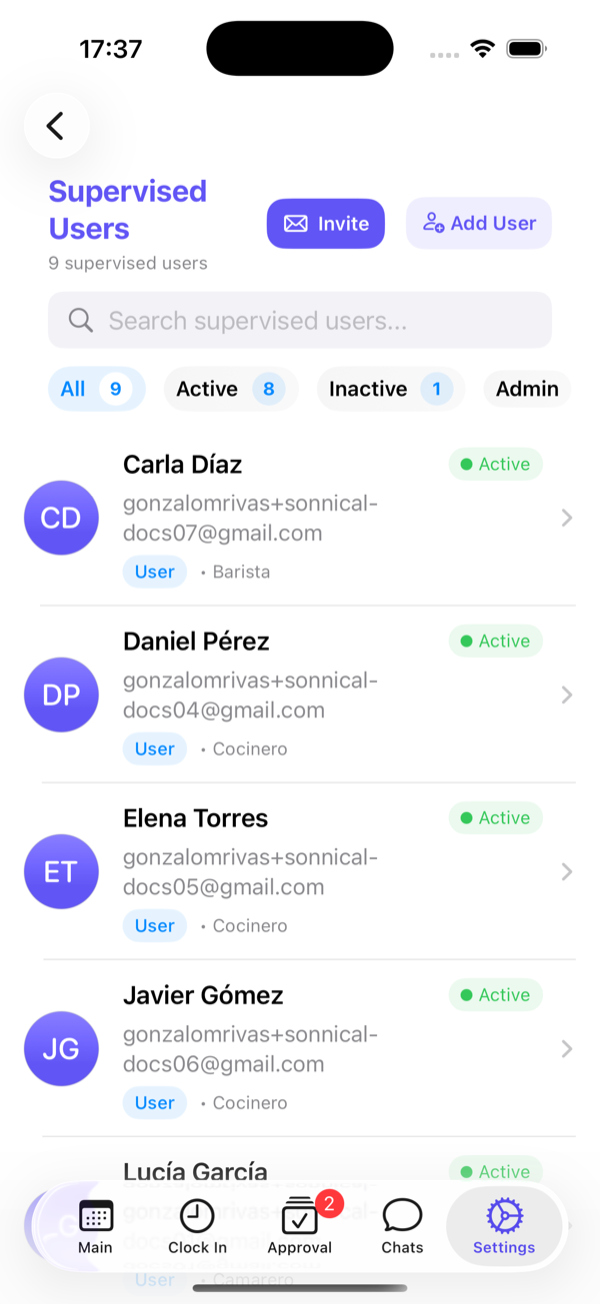
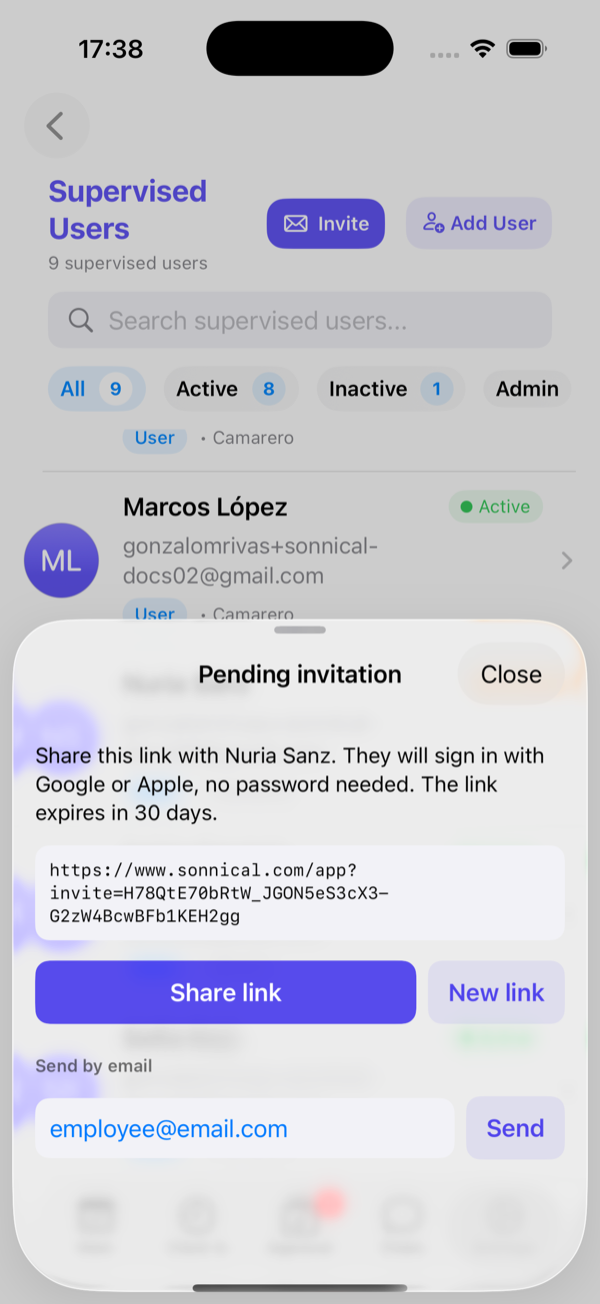
Two ways to bring someone in
| Way | When to use it | How the employee joins |
|---|---|---|
| Invite (recommended) | Whenever the person has a Google or Apple account. | They open the link (expires in 30 days) and sign in without a password. Until then they are pending, but can already receive shifts. |
| Add user | When you want to set their email and password yourself. | They get a verification email and sign in with email and password. They can change it later. |
What you configure in the profile
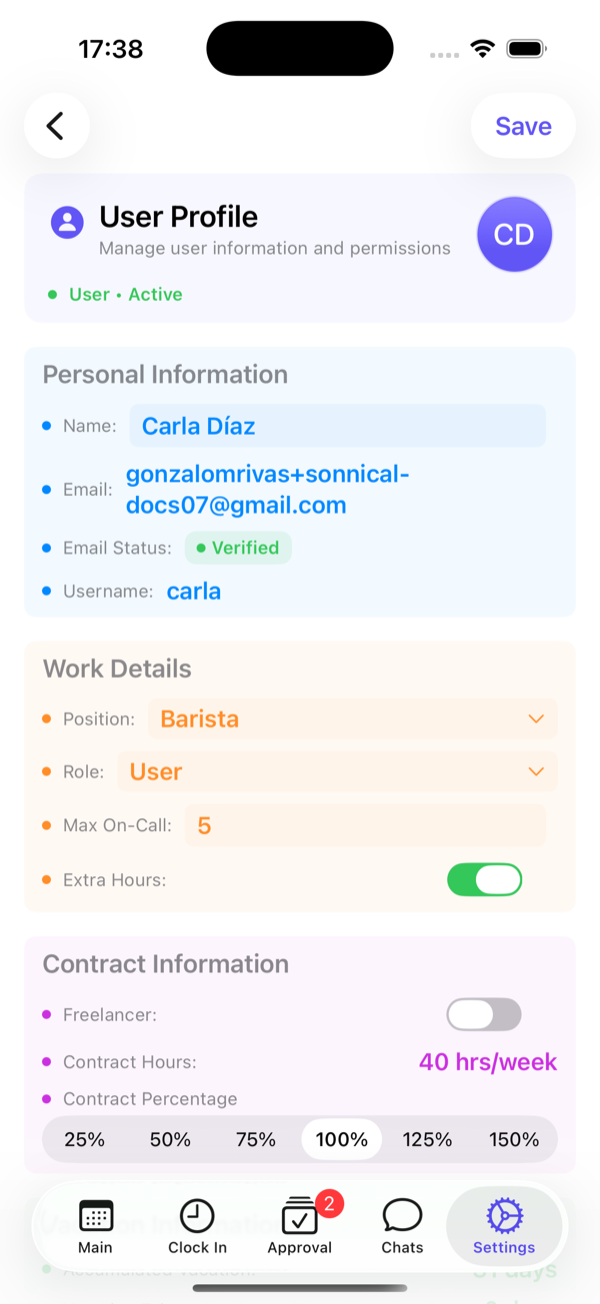
- Position and role (User or Sub admin).
- Contracted hours and contract percentage: they define the weekly quota (see Key concepts).
- Overtime: allows 1 extra shift per week (2 for full-time).
- Max on-calls: cap on long shifts (over 12 h) per week.
- Freelancer: turns them into a freelancer.
- Holidays: days per year and days already taken.
Activating and deactivating
A deactivated employee cannot sign in and receives no shifts, but their history is kept. Pending ones (invitation not opened yet) do receive shifts. To remove someone completely, use Delete user in their profile.
A sub admin manages their own position: creates employees (never administrators), generates shifts and approves swaps and time off for their position. They cannot touch the subscription or the locations.
Locations, areas, shifts and positions
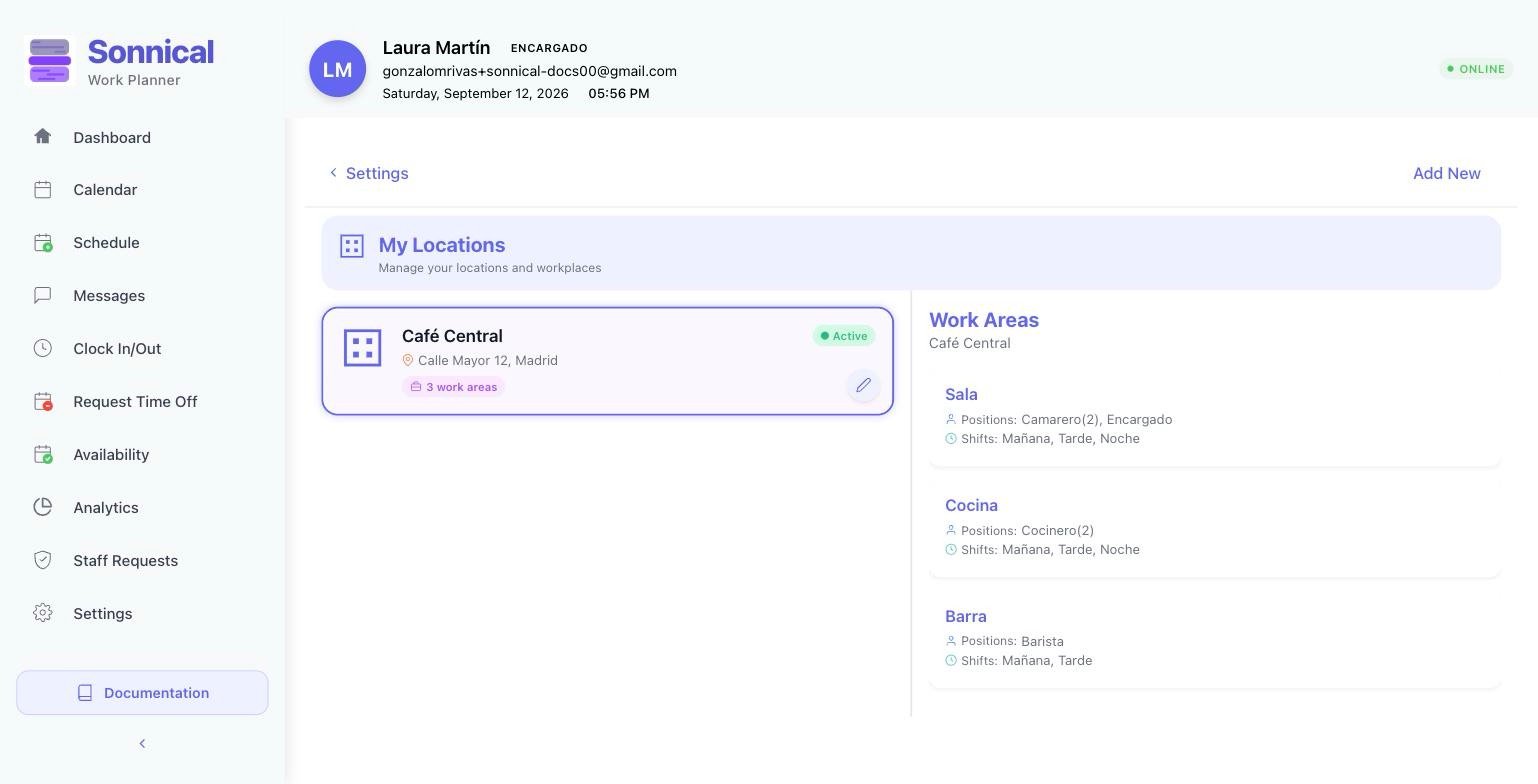
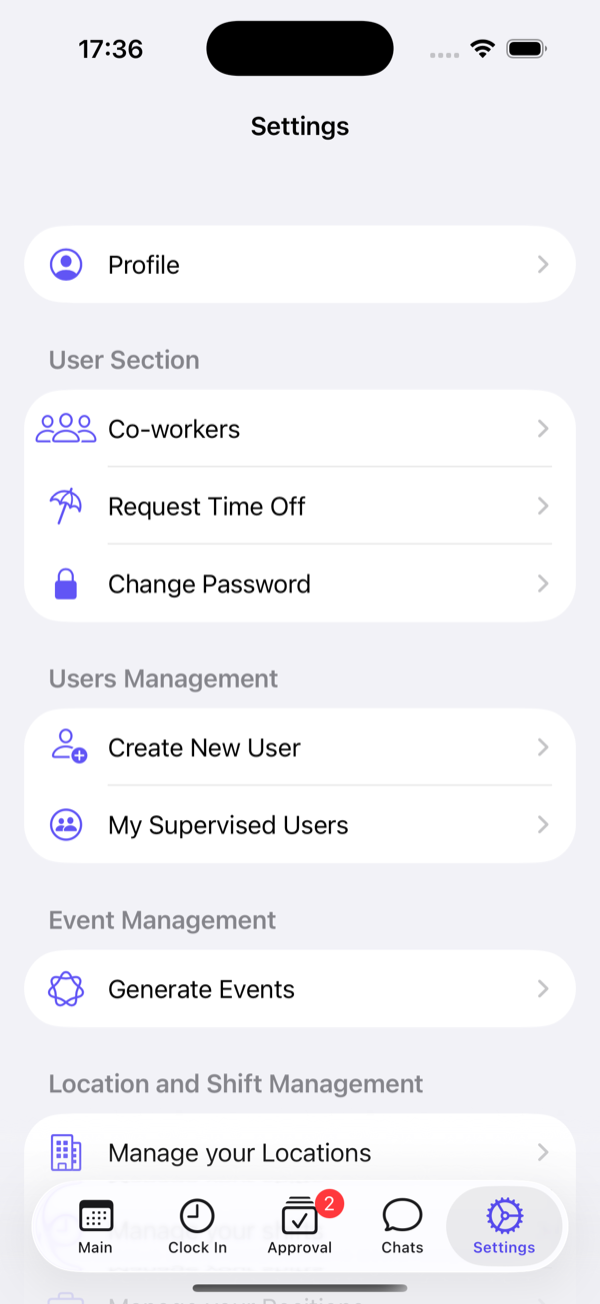
Everything structural lives in Settings: Manage your Locations, Manage your shifts and Manage your Positions. Changing any of these affects what is generated from that moment on, never the shifts already created.
Slots: how many people per shift
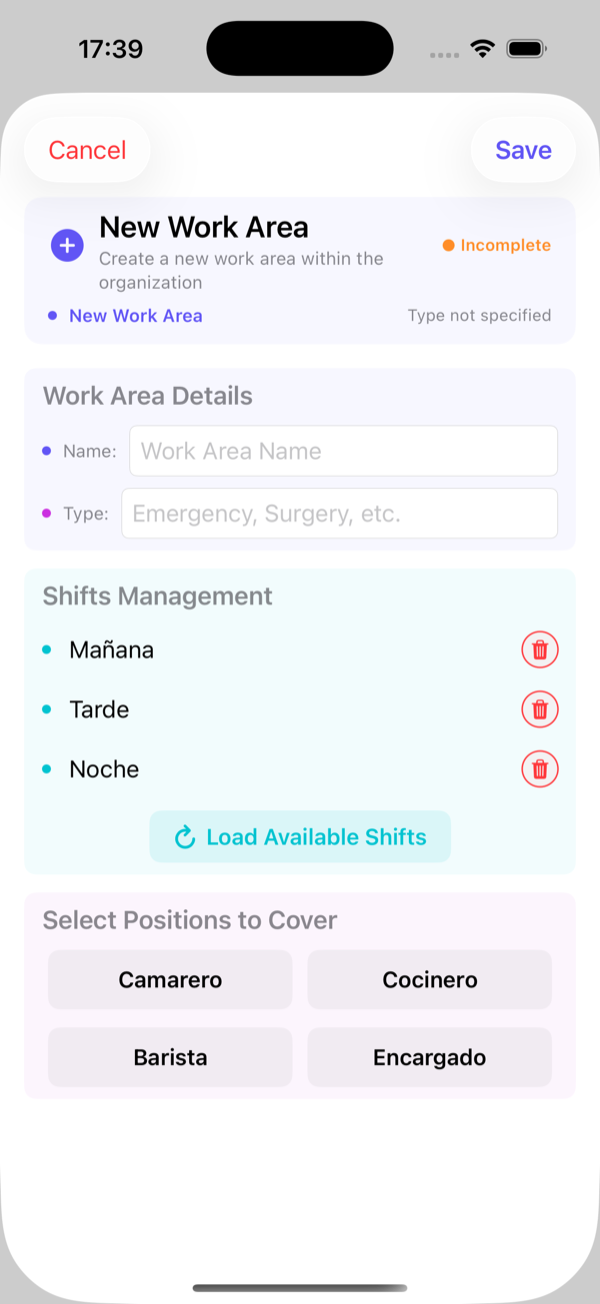
When adding or editing an area, each position has a counter. Waiter 2 means that area needs two waiters on every shift. Sonnical creates two slots per shift and assigns them to two different people.
A surgical service with 4 operating rooms and 2 nurses per room is set up as 4 areas (Room 1…4) with Nurse(2) in each. Generation and rotation work the same with any number of areas and slots.
Shifts
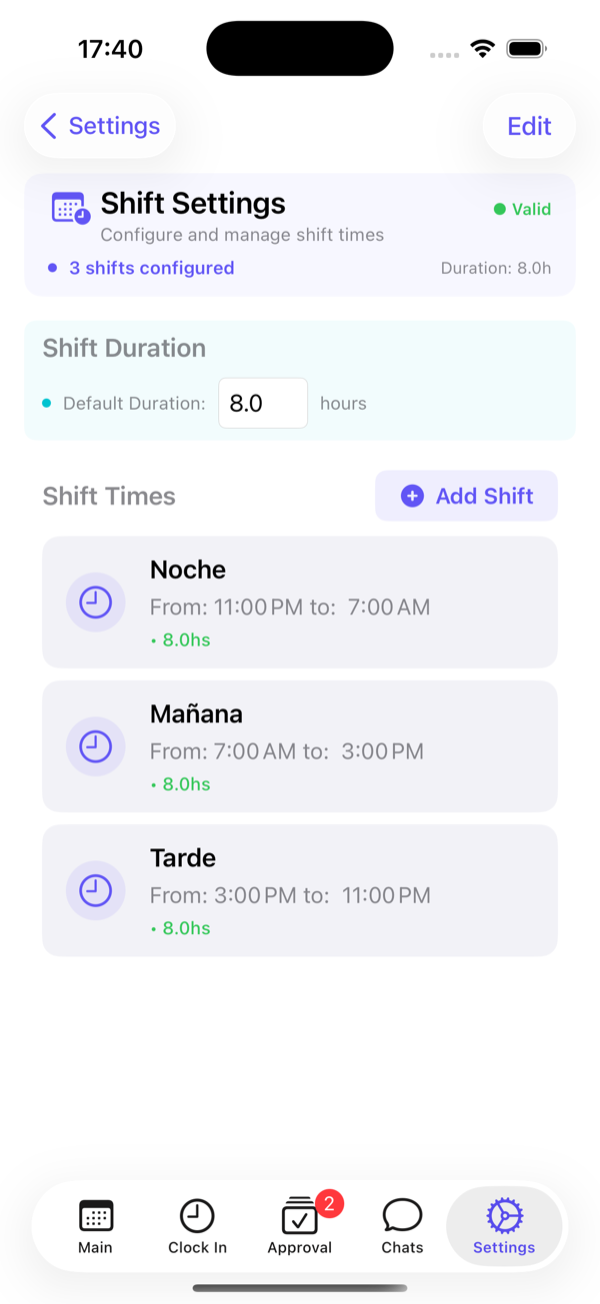
Define the standard duration (used to compute the weekly quota) and each shift with its start and end time. A shift that ends before it starts (Night 23:00-7:00) is understood to cross midnight. Shifts longer than 12 hours are treated as on-calls.
Positions
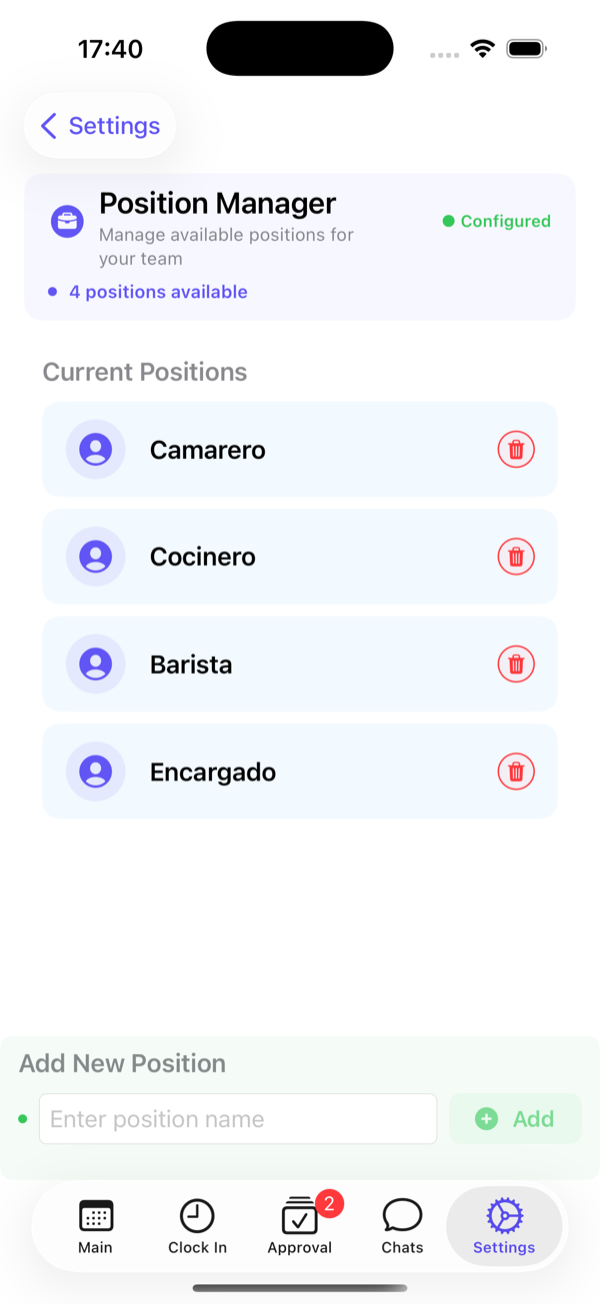
Add or remove positions. Each employee has one and each area decides which ones it admits. If you remove a position that has people assigned, reassign them first.
Administrator settings
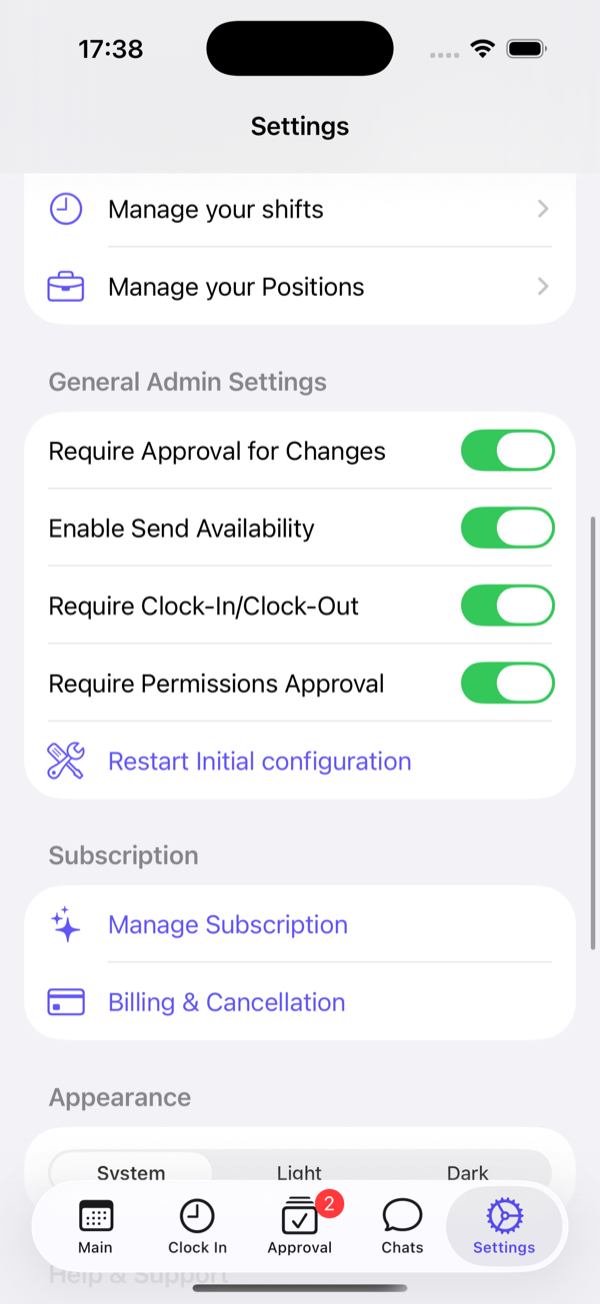
| Setting | Effect |
|---|---|
| Require approval for changes | Swaps and give-aways between employees need your approval. Off, they apply when accepted. |
| Allow availability submission | Freelancers can mark their available days and assignment takes them into account. |
| Require clock in/out | Enables time tracking for the team. |
| Require approval for permissions | Time off needs your approval. Off, it is approved automatically. |
| Reset initial setup | Runs the setup wizard again. |
| Appearance | System, light or dark. |
| Language (web) | Spanish or English. On mobile the app follows the phone language. |
Your profile
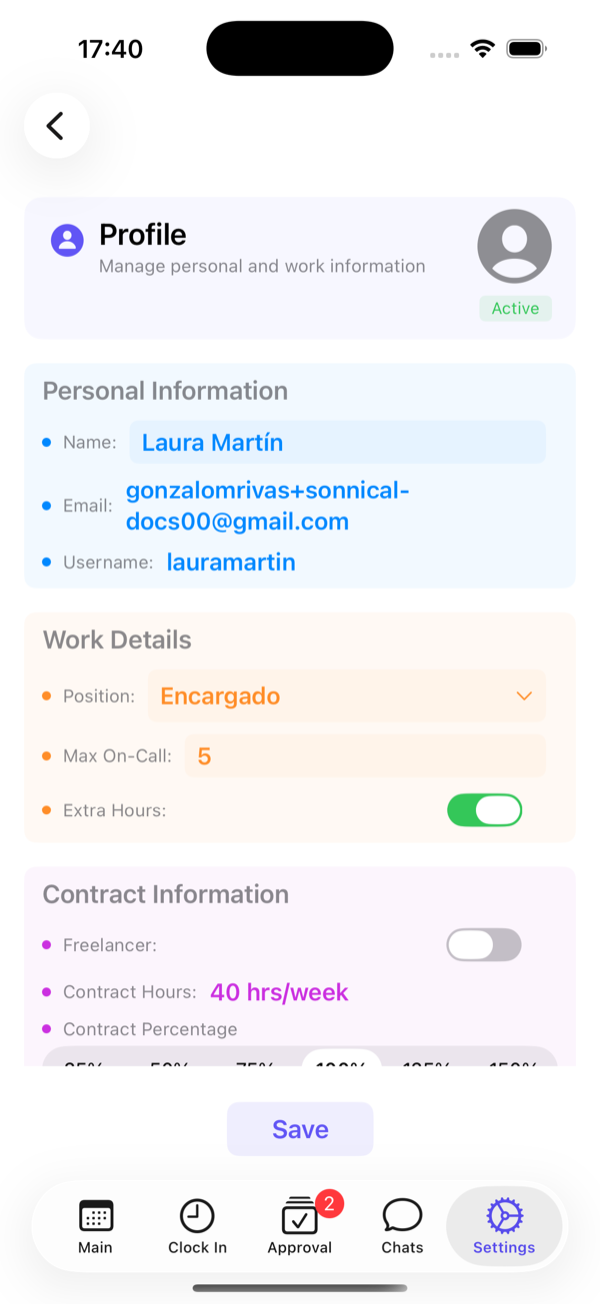
The administrator also has a position and a contract: they count as one more team member and can receive shifts of their position. Here you also choose whether the week starts on Monday or Sunday.
Subscription and plans
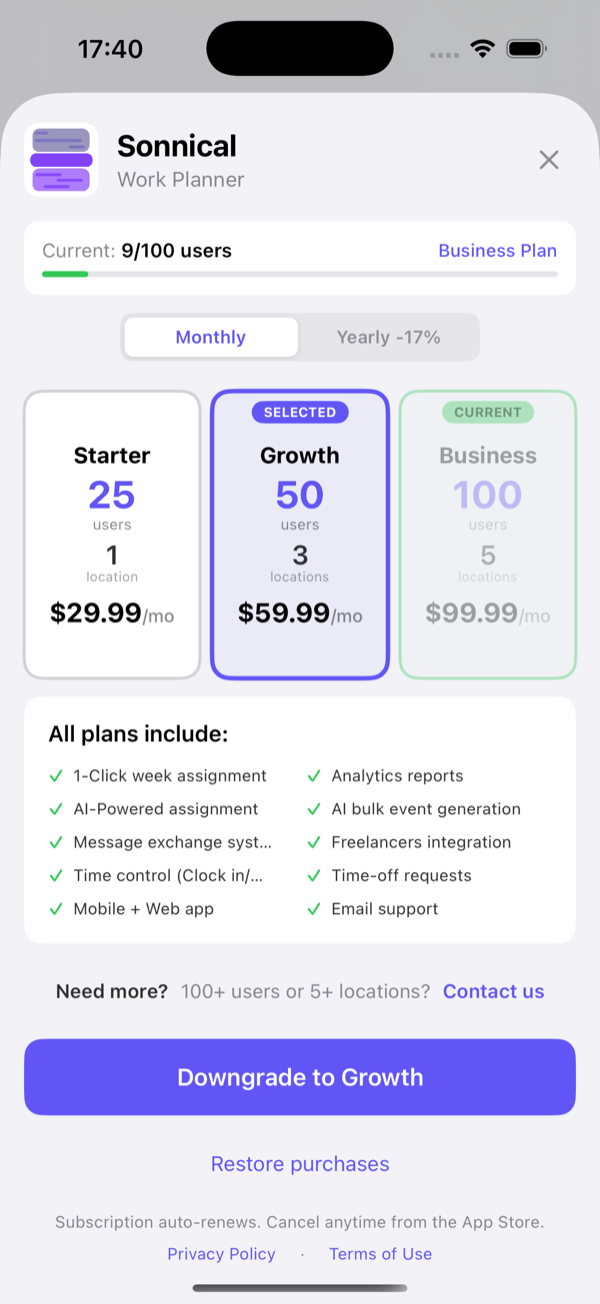
| Plan | Users | Locations |
|---|---|---|
| Free | 6 | 1 |
| Starter | 25 | 1 |
| Growth | 50 | 3 |
| Business | 100 | 5 |
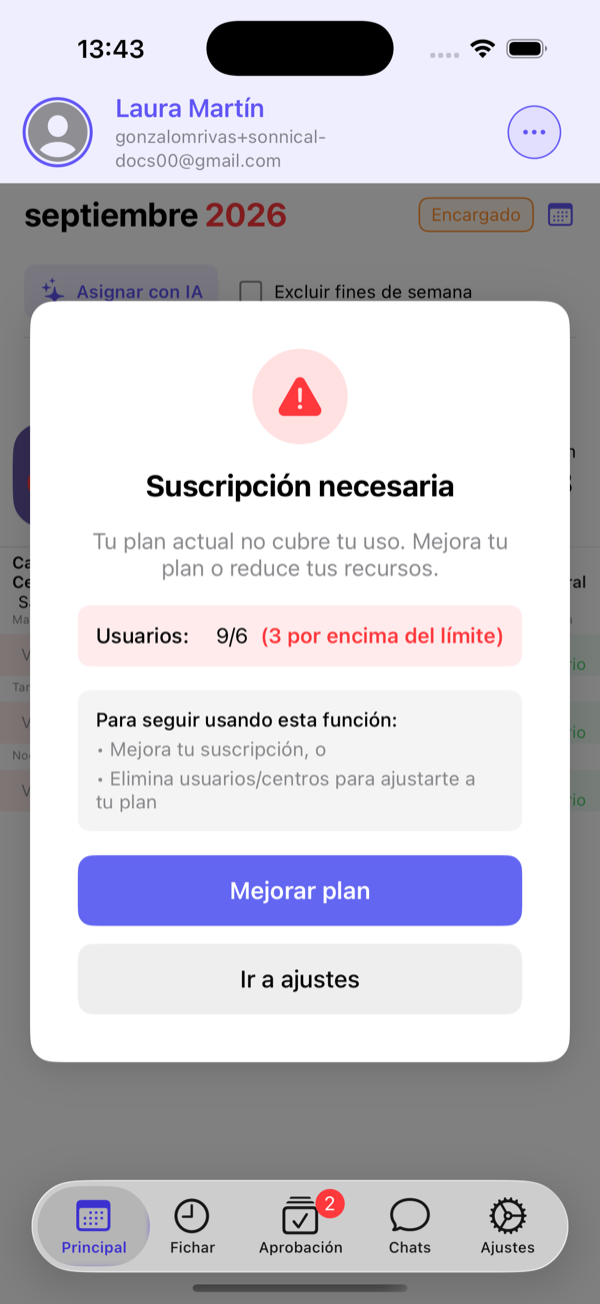
- Who counts: the administrator and active employees. Pending ones (invitation not opened) and deactivated ones do not count.
- When you go over the limit, the app warns you before the action that would cause it (for example, activating one more employee) and offers to upgrade the plan or adjust the team.
- Managed from Settings → Manage subscription on iOS, Android or web. It renews automatically and is cancelled from the store or portal where it was purchased.
Contact us from the plans screen (Contact us) and we will prepare a custom plan.
The web: dashboard, schedule and analytics
Sign in at sonnical.com/app with the same account. The web is meant for the administrator at a desk: big screen, exports and analytics. Employees can use it too, but the phone is their natural tool.
Dashboard
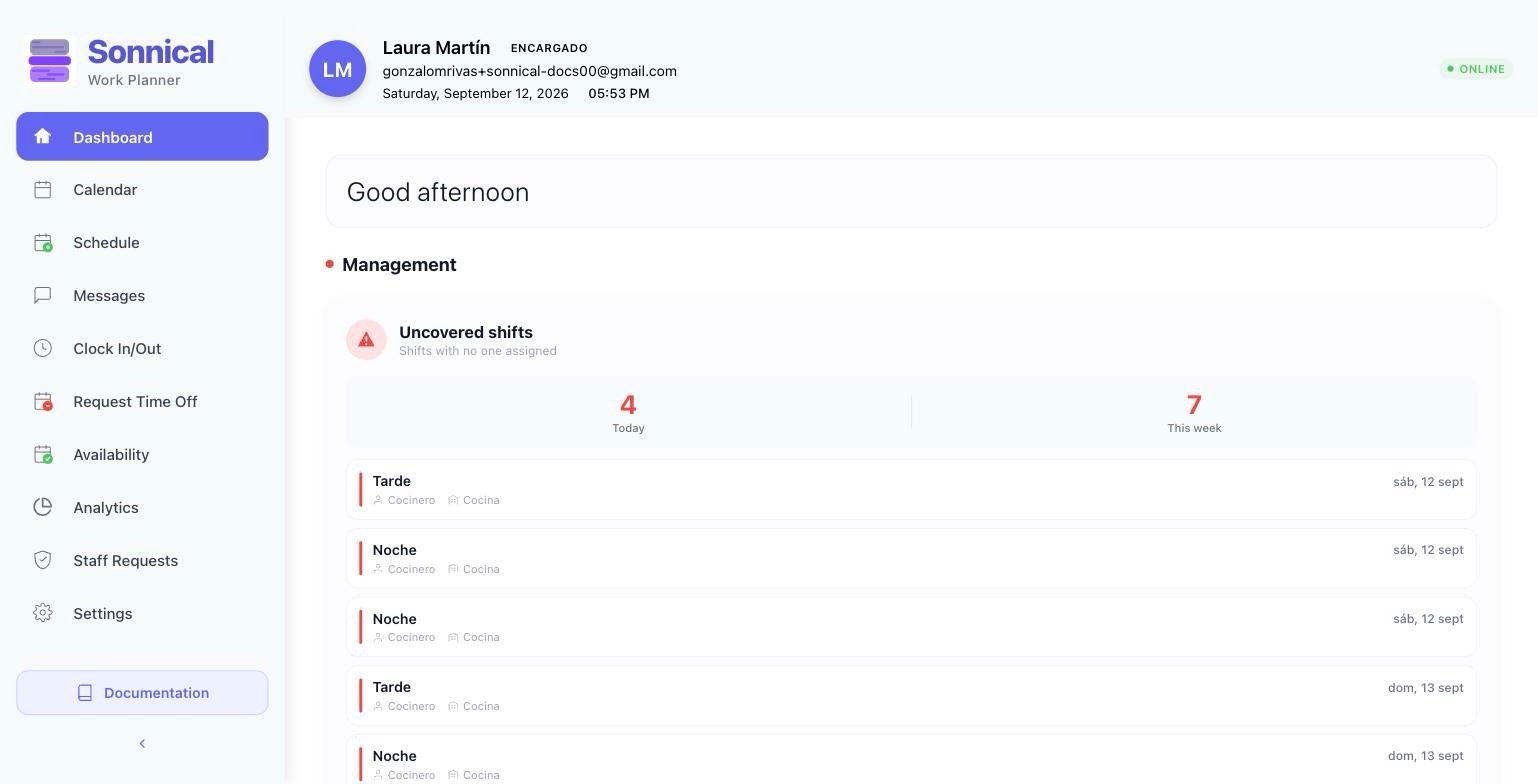
Schedule
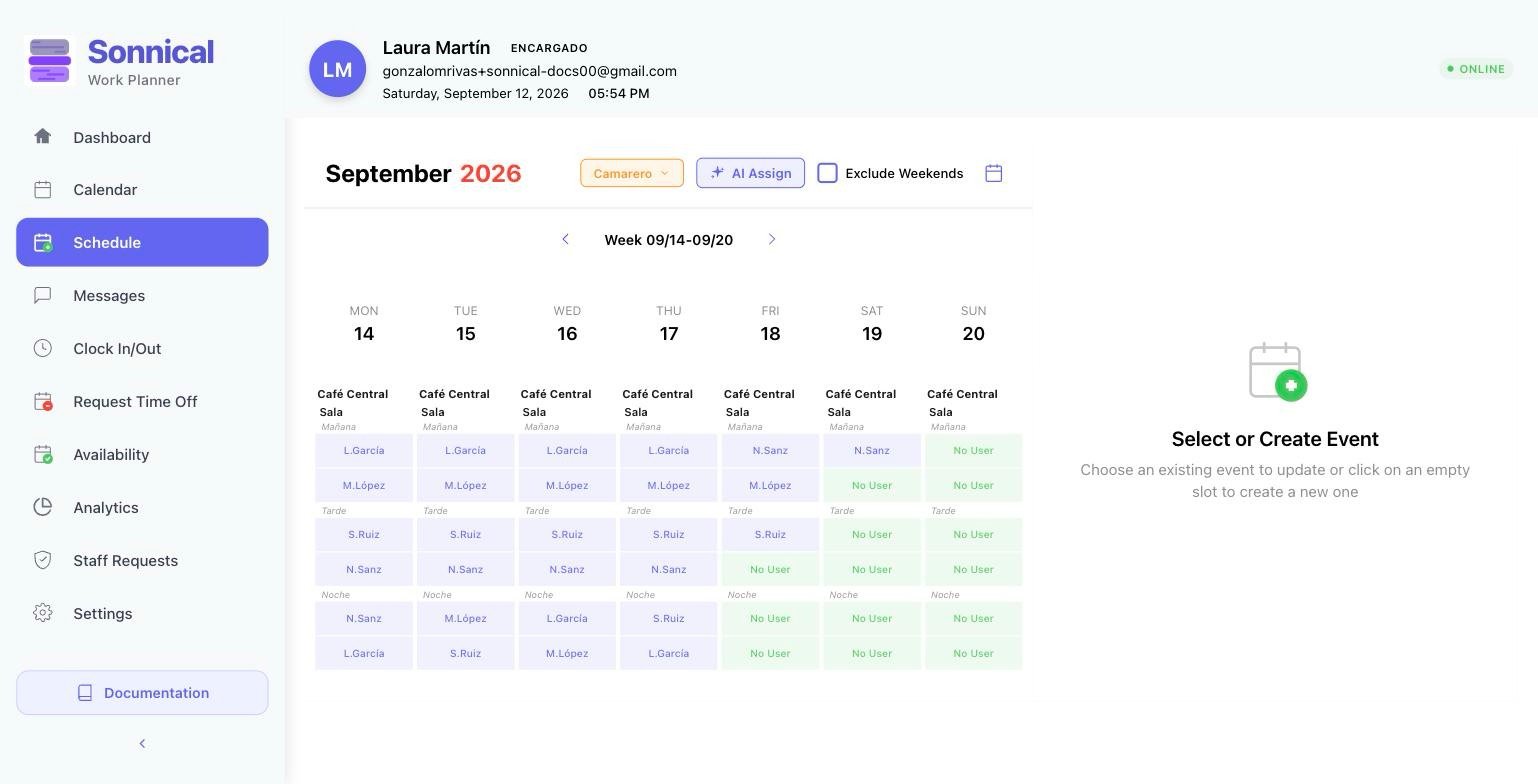
It is the mobile schedule at full size. Position selector, week navigation, AI Assign and editing of every cell (assign, change or leave without user).
Analytics
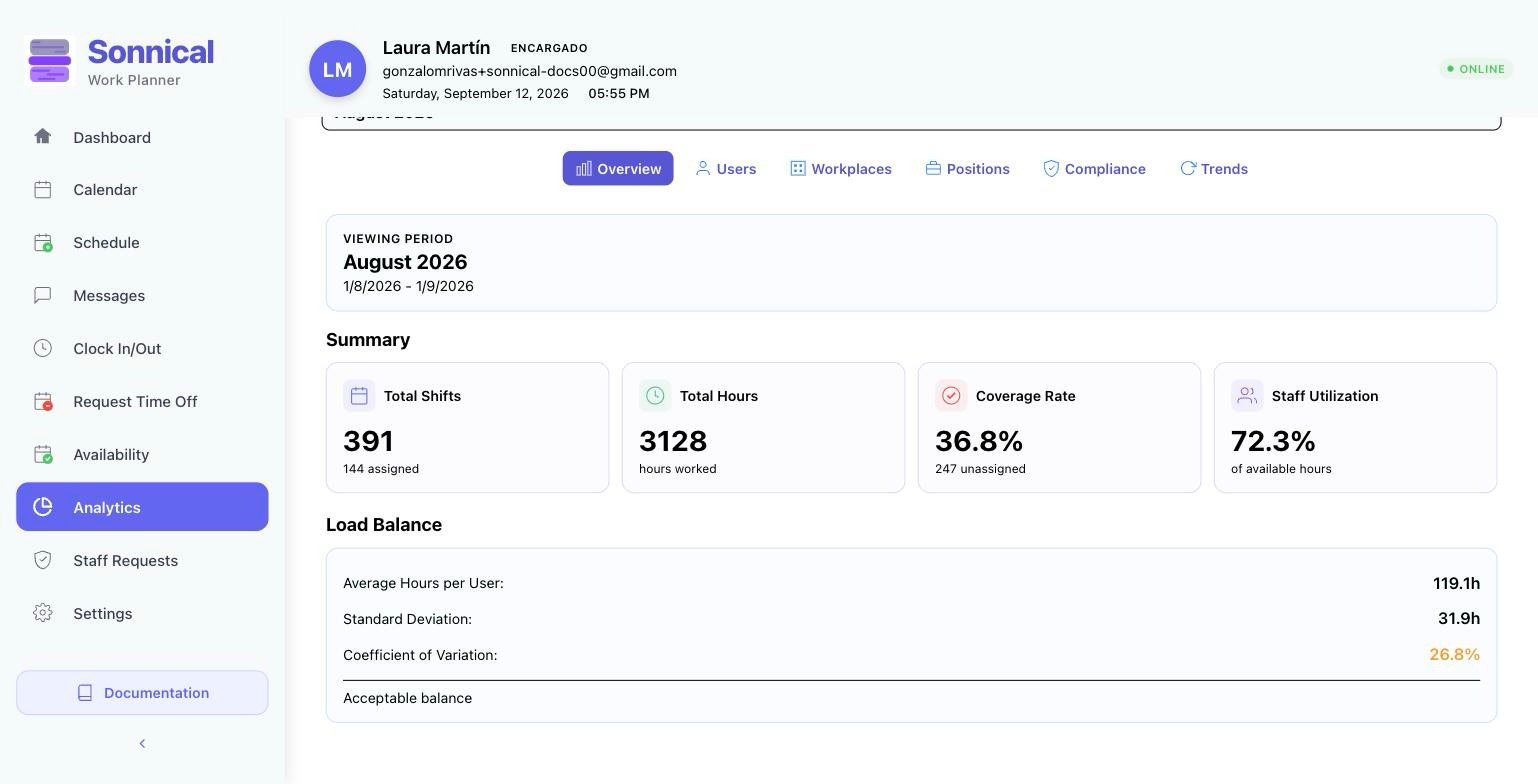
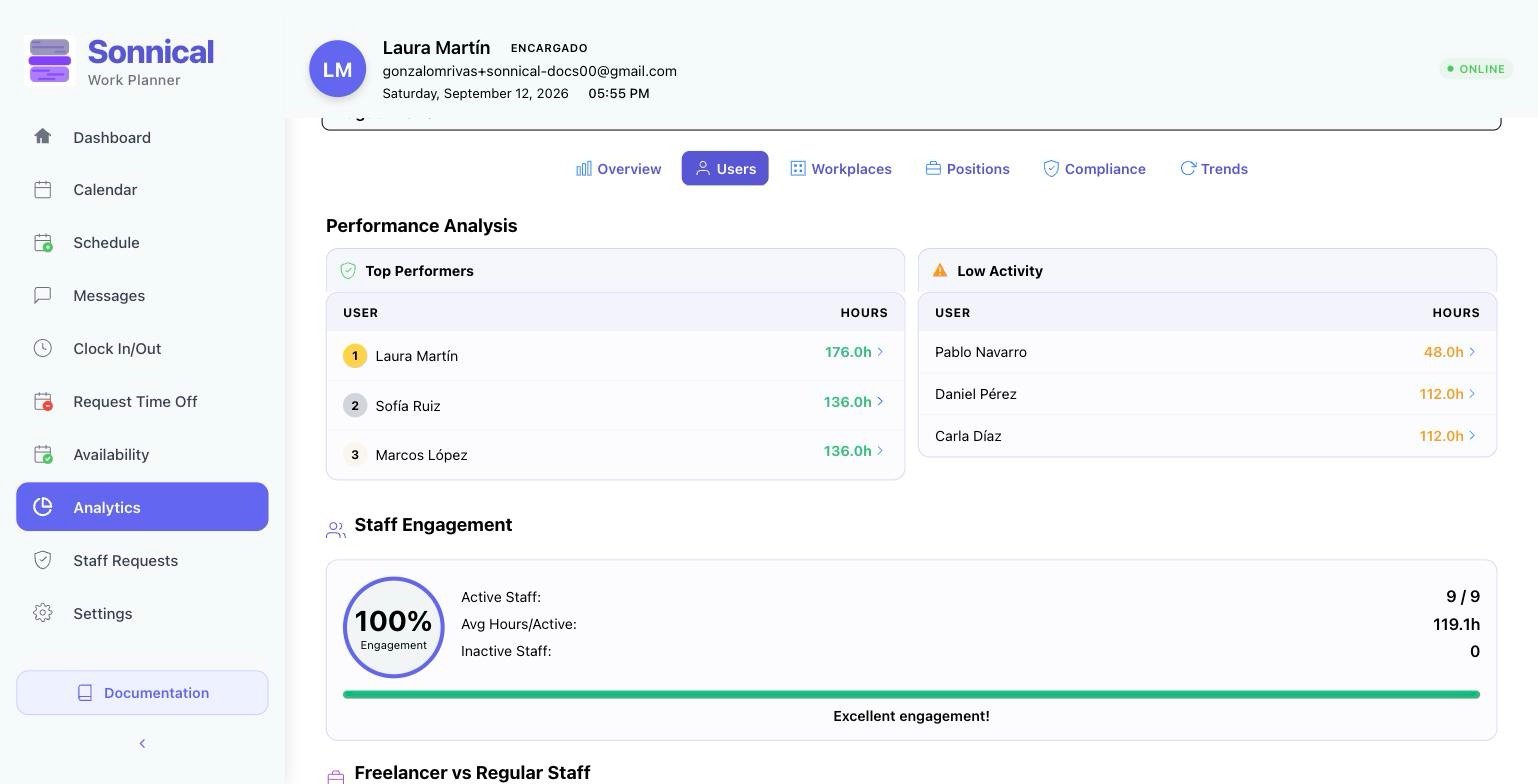
- Weekly, monthly, quarterly, biannual and yearly periods. Data is computed automatically when each period closes (every Sunday, the 1st of each month…).
- Recalculate forces the calculation of the last closed period; Export CSV downloads the data.
- Tabs: Overview, Users, Workplaces, Positions, Compliance (clock-ins) and Trends.
Analytics needs complete periods with shifts. A newly created business sees "No data available" until its first week closes.
Staff requests and users
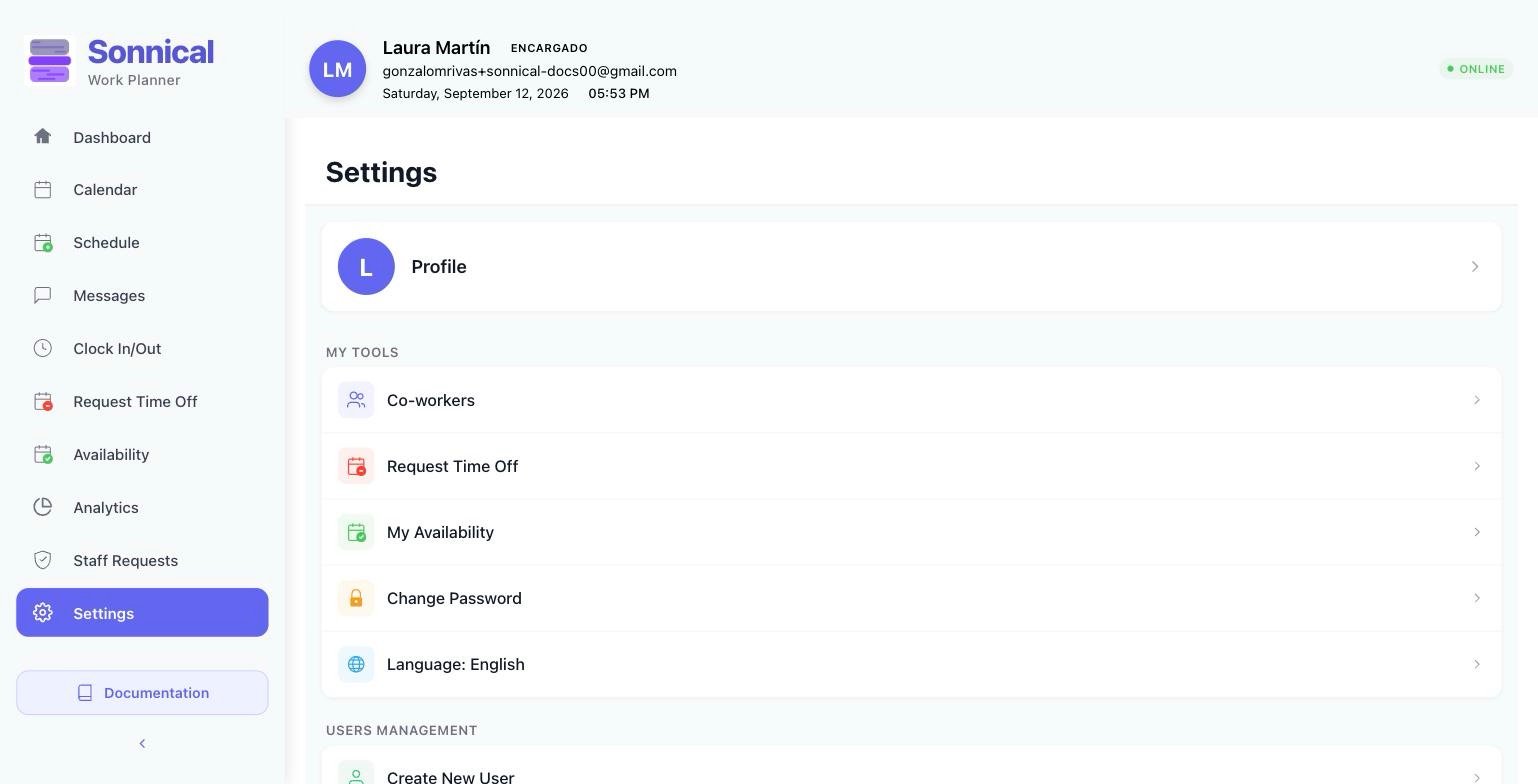
Staff Requests is the mobile Approval tab. Settings contains the same management of users, locations, shifts and positions as the app.
Frequently asked questions
I generated shifts twice and nothing was duplicated. Is that normal?
Yes. Each slot (day, area, shift and slot number) exists only once. Re-running generation only fills what is missing.
Why are some shifts left unassigned?
Because nobody in the position can take them: weekly quota reached, approved time off, freelancer without availability that day or more slots than people. Check the generation summary: it shows how many are left per position.
An employee has two shifts on the same day.
It is valid as long as they do not overlap (for example morning and night). Sonnical does not enforce minimum rest; if you do not want it, change it in the schedule.
An employee cannot see their shifts.
Check they are active, their position matches the shifts' position and they have opened the invitation. If they just joined, close and reopen the app.
Can I have a second administrator?
No. Each business has one administrator. Appoint sub admins to delegate the management of each position.
What if I change the shift duration or contracted hours?
The weekly quota changes from that moment on. Shifts already assigned do not move.
I need help.
Settings → Support from the app, or write to sales@sonnical.cloud.